Capture the Moment: How to Record Screen in Google Meet

Summary :
No matter what your reason is for wanting to record a Google Meet online meeting, you can find a suitable solution in this article, available for Mac, Chrome/Edge, and Android.
Table of Contents
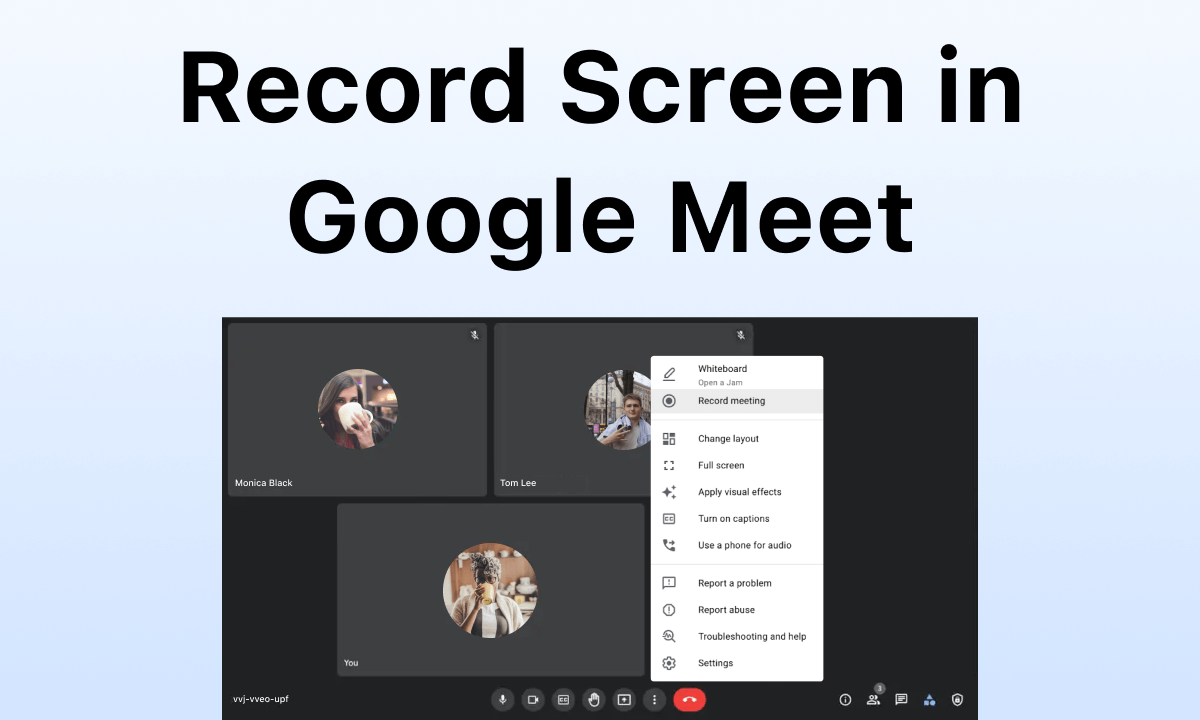
How to Record Screen in Google Meet
Screen capture with Google Meet is simple, whether using it for virtual training, archiving a crucial presentation, or recording a meeting for later use.
This tutorial guides you through the process, which covers both third-party and built-in alternatives. We’ll go over how to access your saved material, change permissions, and start a recording.
You may easily save your Google Meet sessions for subsequent review or sharing with these approaches.
Using Google Meet’s Built-in Recording Feature
Google Meet is a video conferencing platform developed by Google as part of its G Suite (now Google Workspace) productivity tools. It enables users to conduct virtual meetings, video calls, and webinars with ease.
Google Meet offers features like screen sharing, real-time captions, and integration with other Google services.
It supports large groups and provides options for joining via web browsers or mobile apps.
With its user-friendly interface and robust security measures, Google Meet has become a popular choice for businesses, educational institutions, and individuals seeking reliable remote communication solutions. Google Meet has a built-in recording feature but with limitations as listed:
1. Only available for certain Google Workspace accounts
2. Host or co-host permission required
3. All participants are notified when the recording starts
4. Records only what’s visible in the main meeting window
5. Doesn’t capture individual audio tracks
6. Recordings are saved to Google Drive, which may have storage limits
To overcome these limitations, here are 3 more complete solutions for Mac, Chrome/Edge, and Android.
How to Record Google Meet on Mac
To record Google Meet on Mac, your top 1 option is to use Quicktime Player which is built in Mac. Check the simple steps below:
Step 1. Start your Google Meet and keep it going.
Step 2. Go to search icon > type in Quicktime Player (or press Command + Shift + 5).
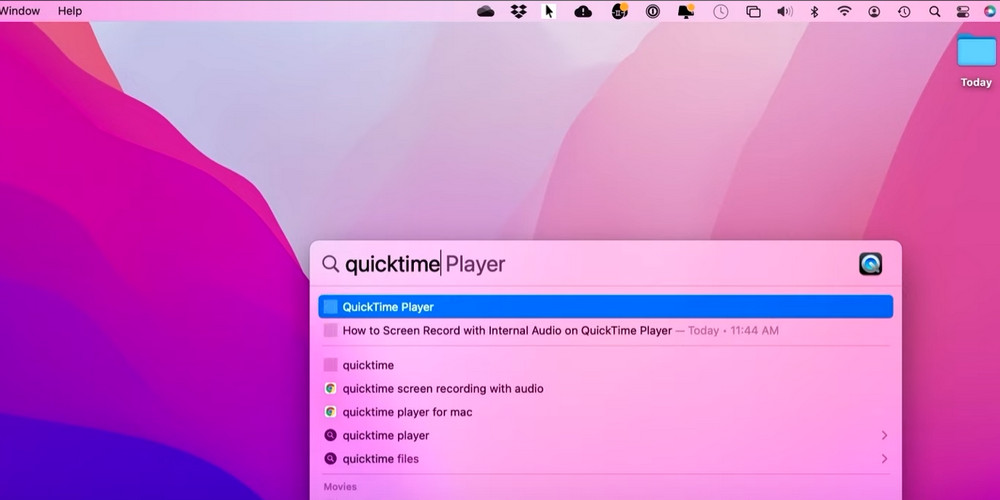
Search Quicktime Player
Step 3. Choose full-screen recording or selected portion recording.
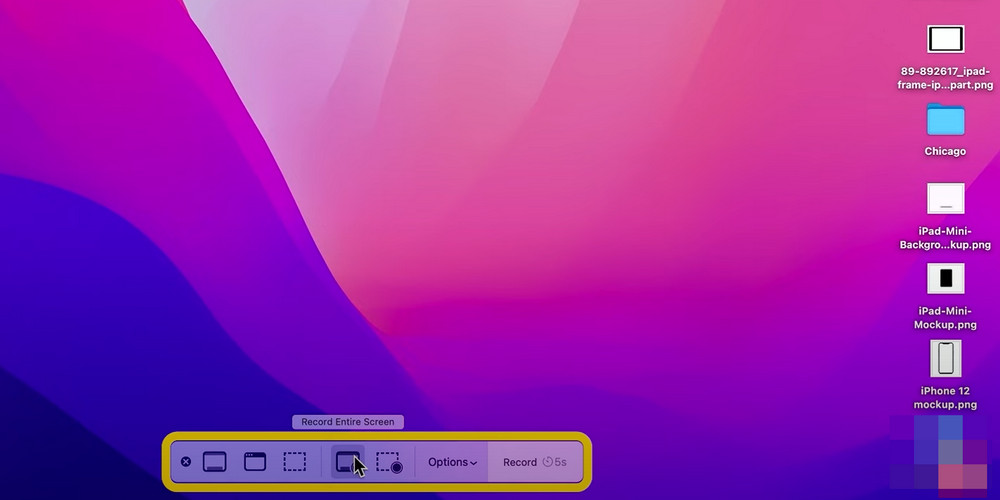
Set Recording Preference
Step 4. Click the recording button and stop the recording by hitting the same button.
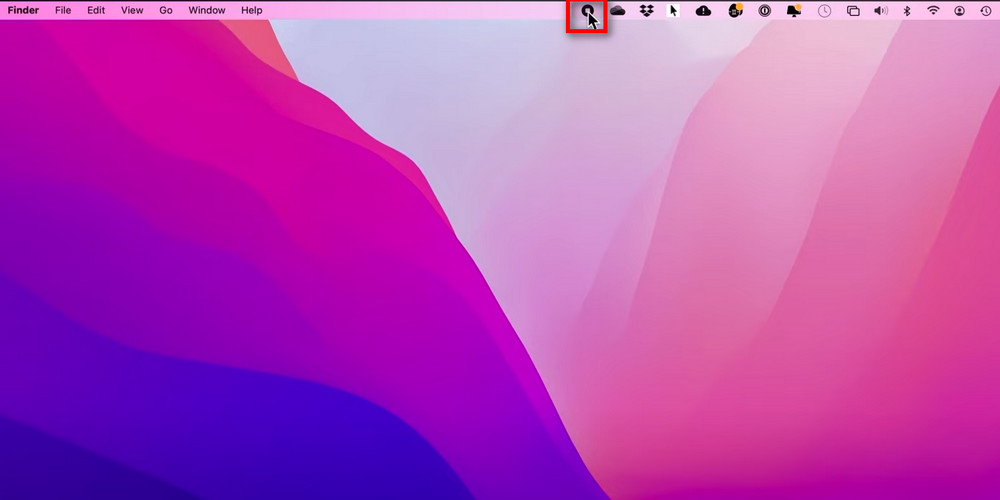
Click the Recording Button
How to Record Google Meet in Chrome and Edge
Step 1. Open your Chrome or Edge and add Klip to the extension > Initiate Klip.
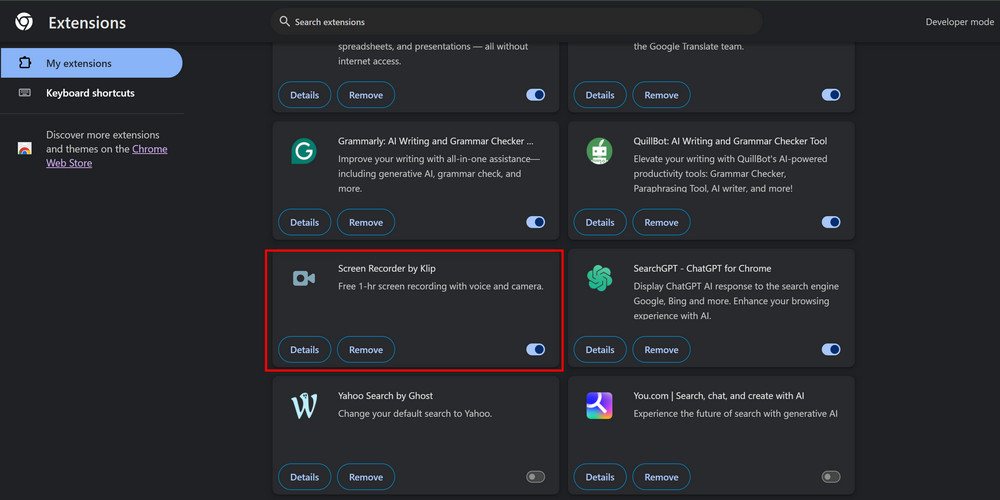
Add and Initiate Klip Extension to Chrome
Step 2. Allow Klip to use your camera and mic > Hit “Record” > Choose which window to record (Select Google Meet window).
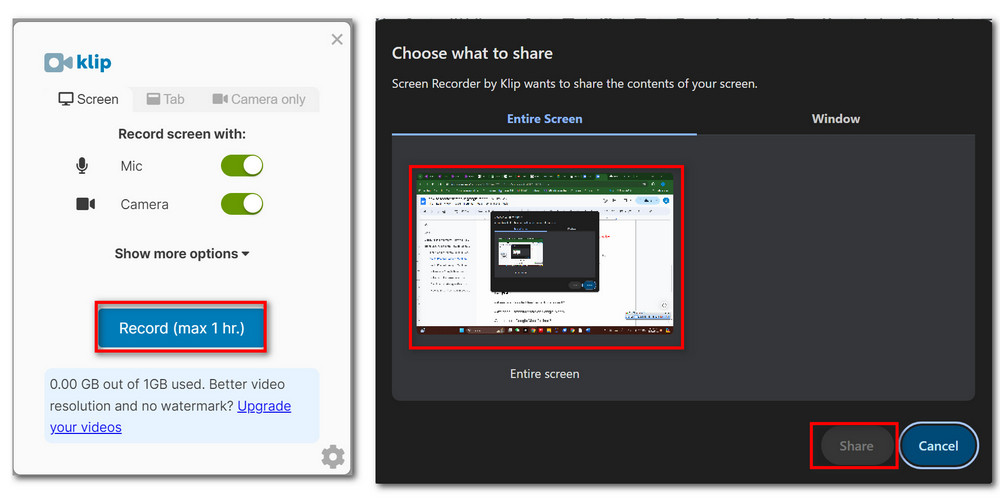
Select Google Meet Window to Record
Step 3. The recording will start after a 3-second countdown > Click “Stop Sharing” to finish your recording.

Stop Recording and Save the Video
How to Record Google Meet on Android
To record Google Meet on an Android phone, it’s better to use a simple recording app. Here is how you can do it on Android with AZ Screen Recorder.
Step 1. Download and install AZ Screen Recorder from the Google Store.
Step 2. Open the AZ app > Go to Toolbox to set your recording preference.
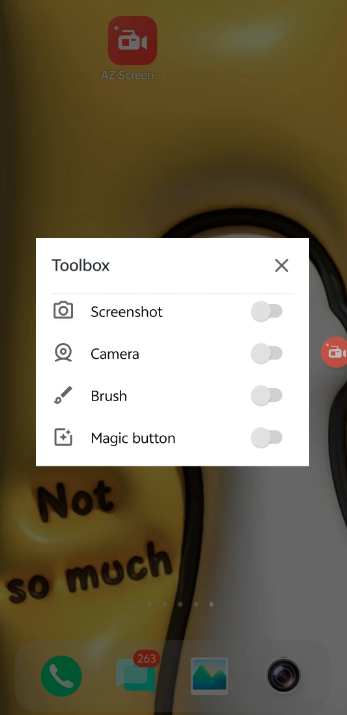
Open the AZ APP and Set
Step 3. Start your Google meeting > Hit the Recording button from the AZ Screen Recorder to start recording > Halt the recording and the recording video will be saved automatically in your gallery.
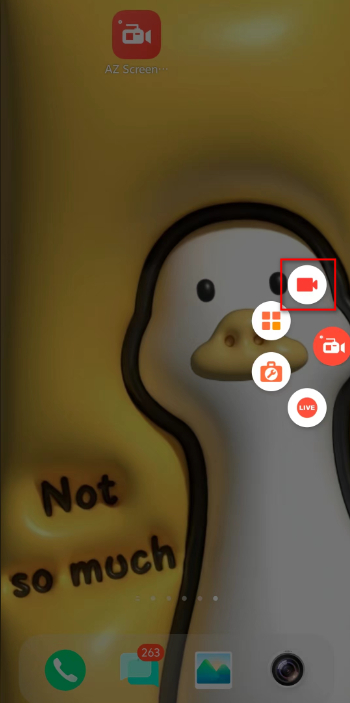
Hit the Recording Button
FAQs
Where Are Google Meet Recordings Saved?
The recordings are automatically saved in the meeting organizer’s My Drive. It is possible that you can’t find the recordings right after the meeting since Google Meet has to process for a while.
Why Can’t I Screen-Record on Google Meet?
There are several possible causes of your failure in screen-record on Google. If you are not the host or co-host, if you are not using Google Meet on a computer, or if the recording is turned off, you can’t record the screen on Google Meet.
Can I Record Google Meet for Free?
Yes, you can record Google Meet for free if you use the Klip extension to do this on Chrome or Edge. You can record Google Meet for free on Android too if you use AZ Screen Recorder.
How to Record Screen in Google Meet with Audio?
If you want to record the screen in Google Meet with audio on your phone, you can use AZ Screen Recorder. If you are using a computer to hold the meeting, try the Klip extension in Chrome or Edge.
Conclusion
Screen recording in Google Meet improves documentation and teamwork. Participants might require additional software such as AZ Screen Recorder, however hosts can utilize the integrated recording feature.
Consent should always be obtained before recording. This feature is useful for providing information to team members who aren’t there, recording crucial conversations, and making instructional. Recall that to preserve accessibility and privacy, recordings should be reviewed and safely stored.
