[3 Ways] How to Record GIFs on Mac for Free

Summary :
Discover three different screen recording software options to quickly record your screen and create GIFs on a Mac. You can either set a shortcut or use dedicated GIF software.
Table of Contents
How to Record GIFs on Mac
For most people, recording Mac screen is not a difficult task. But how to record and save it as GIF format which is easier to share and has a smaller file size?
If you are thinking about this question and want to find an effective way, you have come to the right place.
After researching and trying different tools to capture your Mac screen and convert it to GIF, we have selected the top 3 Mac screen recording to GIF apps that are worth trying. Let’s have a look!
Record GIFs on Mac with Shortcuts App
The first and fastest way is to use Apple’s native application – Shortcuts. Without installing any third-party software, Shortcuts App can quickly convert any live photo or video in the system to a GIF image, and can also set it to loop and customize the resolution.
So just use Record Go to record the Mac screen first, then you can quickly convert the Mac screen to GIF with just a few clicks.
Step 1. Record your Mac screen and save the film on your PC.
Step 2. Launch the “Shortcuts” app on your Mac > Click the “plus sign” on the top left to create a new shortcut.
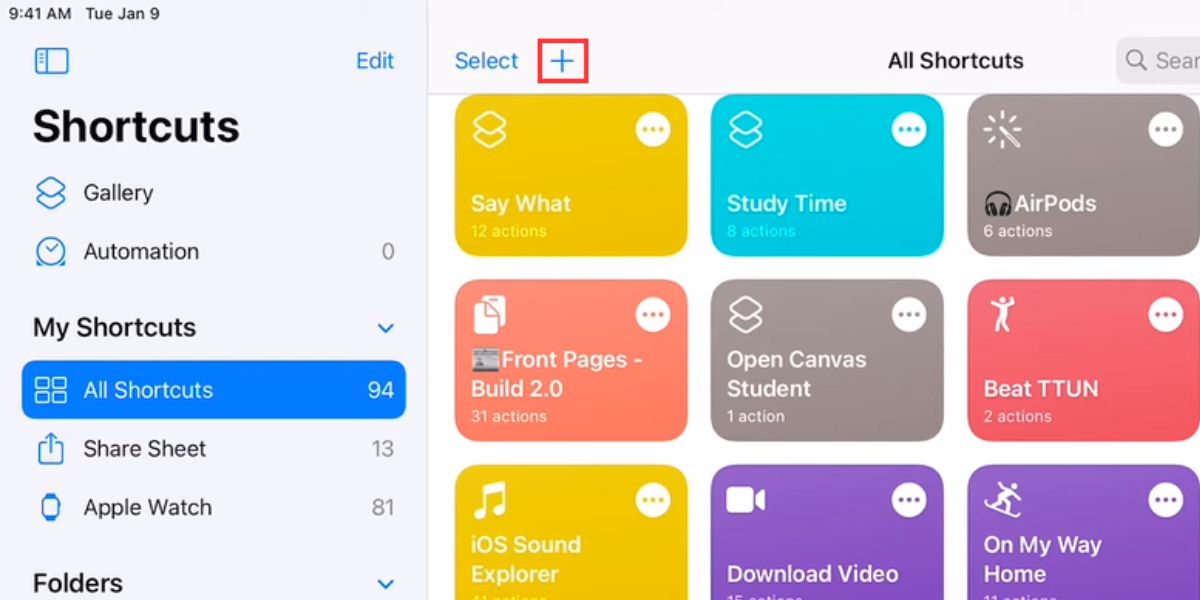
Create a New Shortcut
Step 3. Search for “Select Photos” in the search box and drag it to the left to add an action > Click “Show More” > “Include” > Select “Video” > Click “Done”.
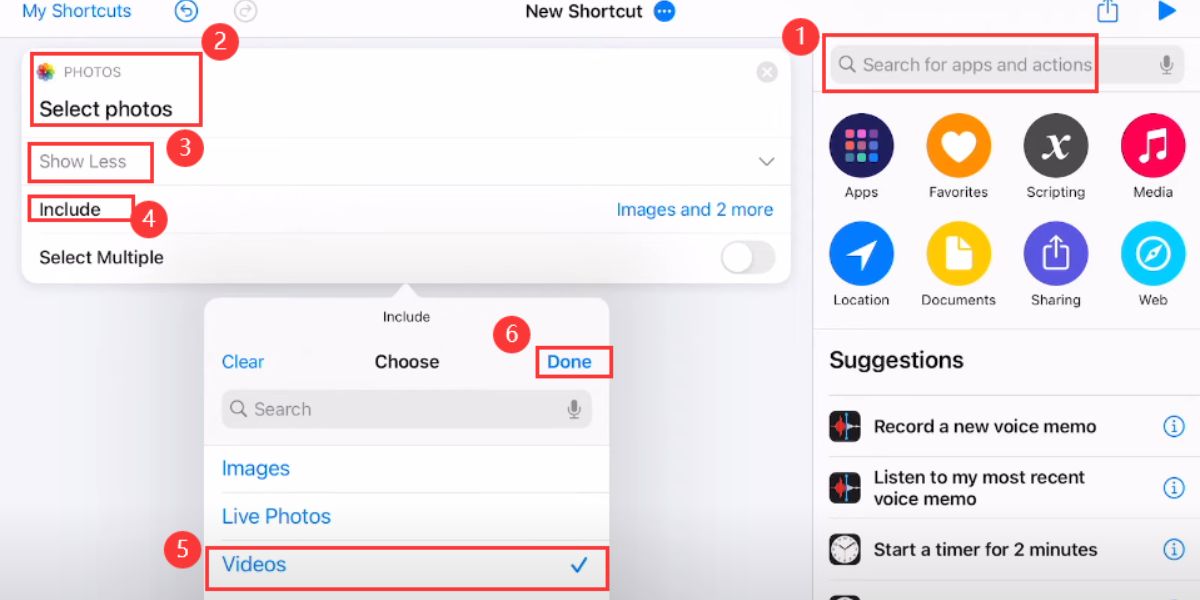
Add Select Photos Action
Step 4. Search for “Trim” and “Make GIF” in the search box and drag them to the left at once to add an action > Click “Show more” under the “Make GIF” action to customize the time, loop, and size.
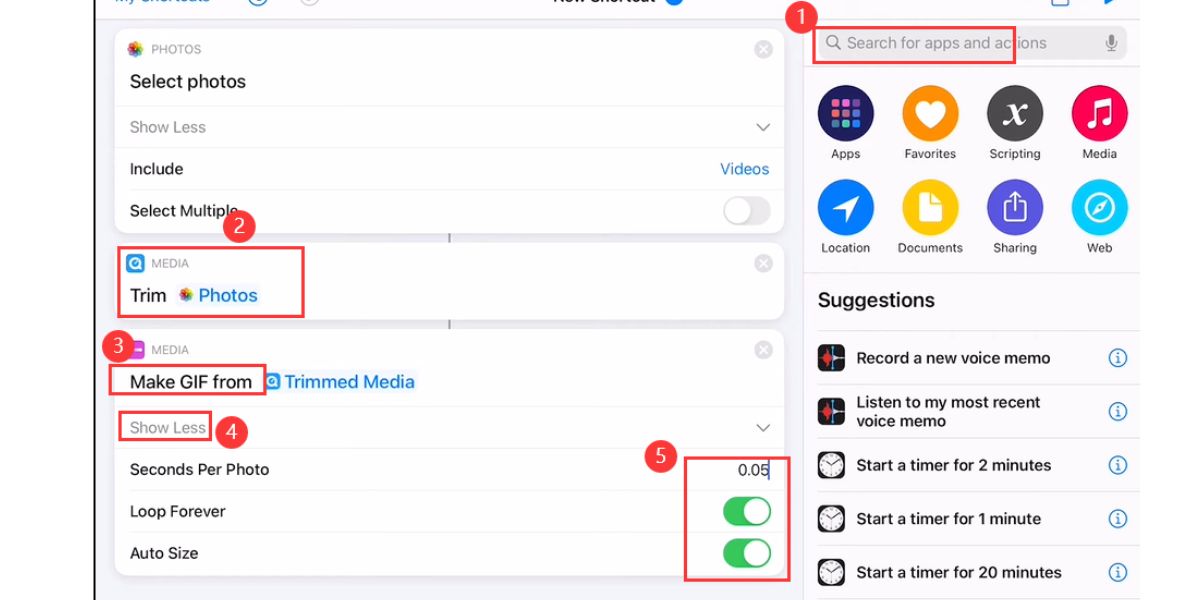
Add Make GIF Action
Step 5. Search again in the search box and add “Quick Look” or other save actions > Click “…” when done to name and save the new shortcut.
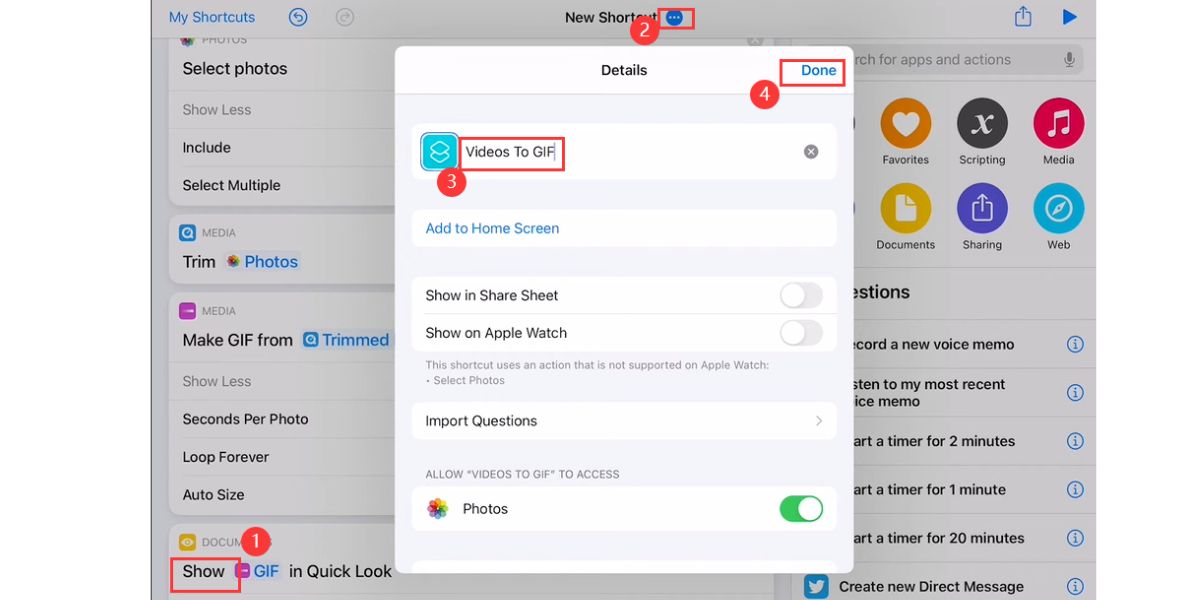
Save and Name the Shortcut
Step 6. Finally, click the “Run” button to select the Mac screen recording video and convert it to GIF.
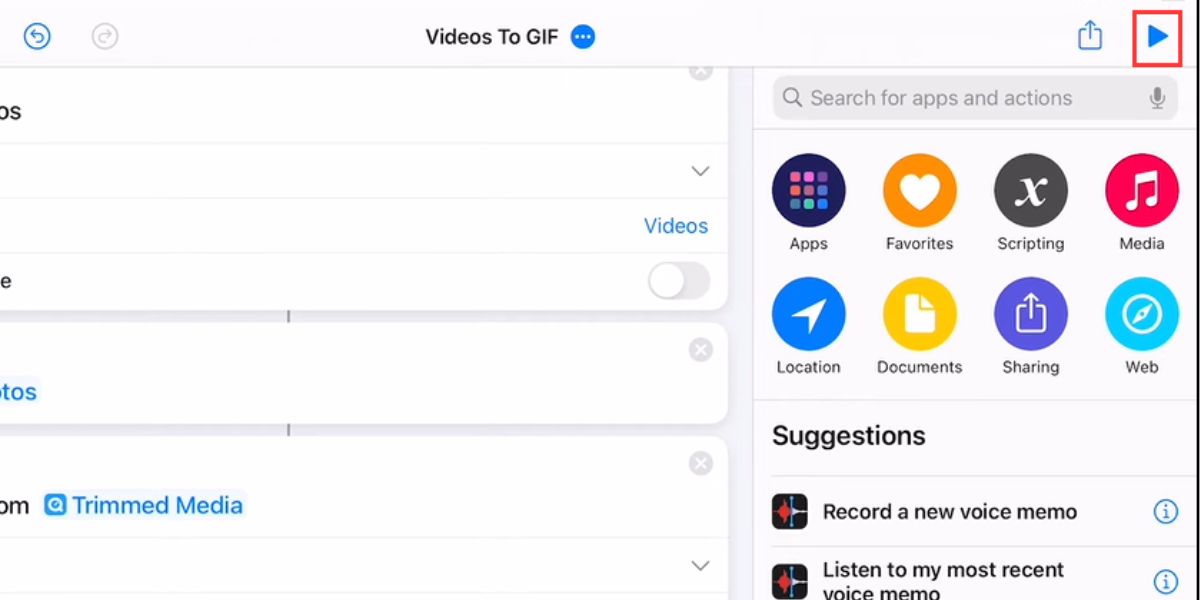
Run Shortcut
Record GIFs on Mac Using GIPHY
GIPHY is a well-known GIF search engine where you can find all kinds of GIFs. In addition, GIPHY provides a useful tool for making GIFs – GIPHY CAPTURE. GIPHY CAPTURE is a GIF recording software designed for Mac.
You can quickly record your Mac screen and export it as a GIF of a custom size with just a few clicks. In addition, the all-in-one feature also supports uploading the generated GIF directly to GIPHY and sharing it with friends.
Step 1. Download and install GIPHY Capture from the App Store.
Step 2. Run GIPHY Capture > Adjust the size, position, and recording settings of the recording window > Click the Start Recording button > Record your Mac screen > Click the “Record” button again to end the recording.
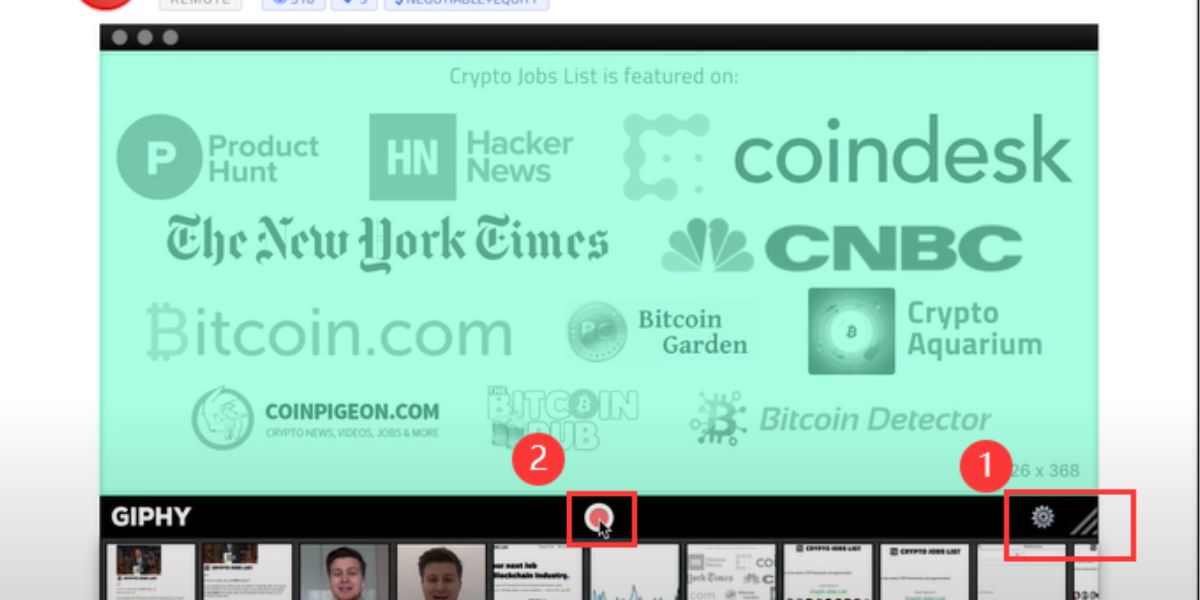
Record Mac Screen with GIPHY Capture
Step 3. Click the file you just recorded > Crop the recorded video in the new window and complete the export settings > Click “Save as” > Name the file, select the save path, and select “GIF” in the format > Finally click “Save”.
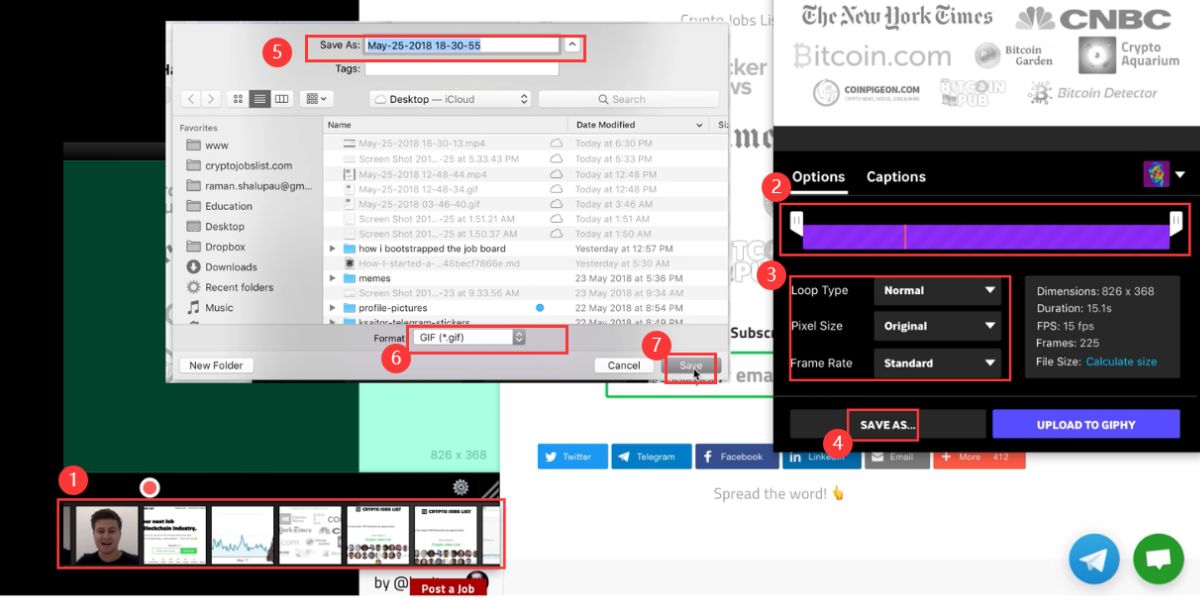
Save the Mac Screen Recording as a GIF
Record GIFs on Mac via GIF Brewery
Finally, we will introduce a powerful GIF-making tool – GIF Brewery. GIF Brewery is a free software for Mac that can automatically convert video files to GIF animation files.
In addition, it has advanced functions such as cutting size, adjusting frame rate, and adding titles before conversion. It is one of the best choices for converting Mac screen recordings to GIFs.
Step 1. Download and install GIF Brewery on your Mac.
Step 2. Run GIF Brewery > Select “Record Screen”.
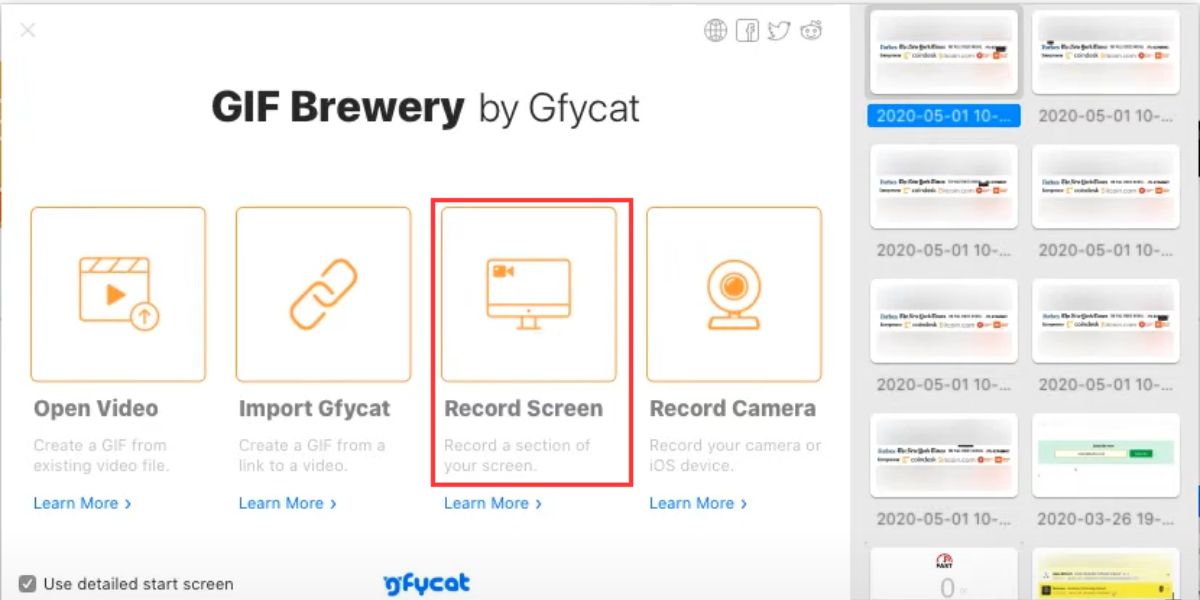
Record Mac Screen with GIF Brewery
Step 3. Adjust the position, size, and recording settings of the recording box > Click “Record” > Click “Stop” after the recording is completed.
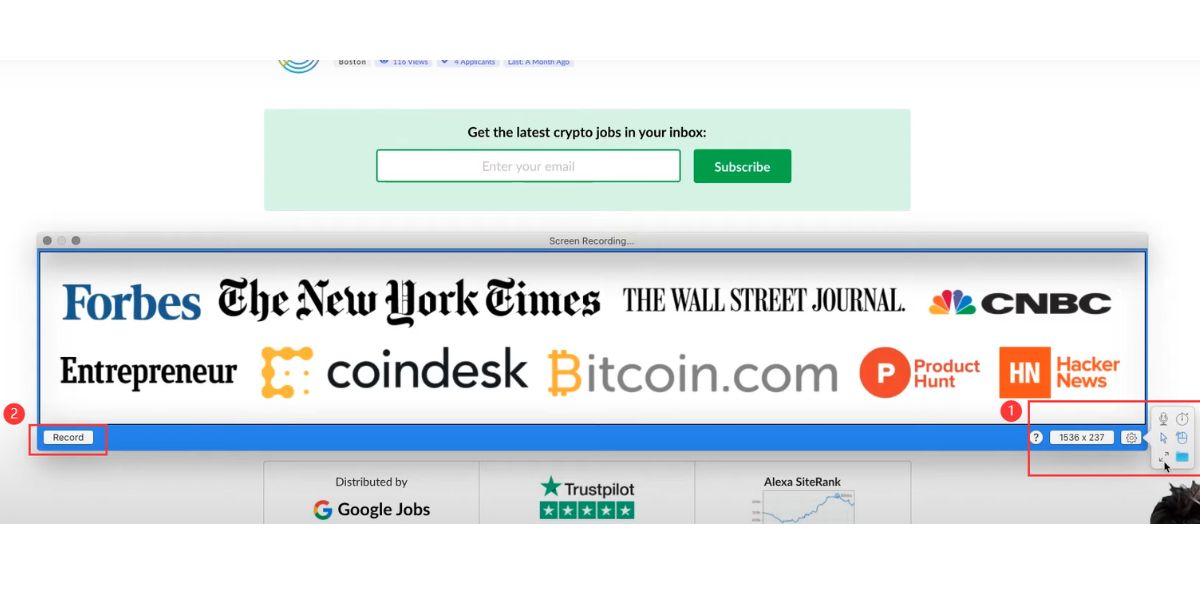
Record Mac Screen
Step 4. Edit the length, size, etc. of the recorded video in the new window > Click “Create” > Click “Save” after exporting > Name the file and select the save path > Finally, click “Save” again.
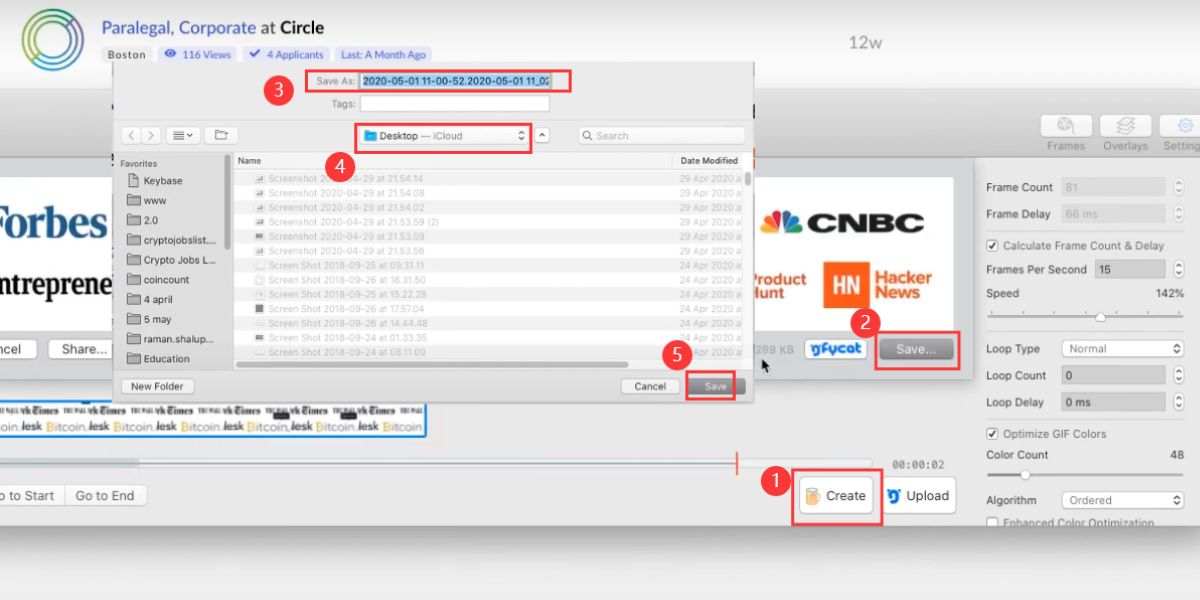
Save the Video as a GIF
FAQs
Can QuickTime Player Make GIFs?
Unfortunately, QuickTime Player cannot convert the screen recording to GIF directly. It is primarily used to edit and play videos on a macOS device. Hence, you can record screens with QuickTime Player and make GIFs with the Shortcut app.
How Do I Convert a Screen Recording to a GIF on a Mac?
The quickest way to convert video to GIF on Mac is to use the Shortcuts App. After following the steps to create a video-to-gIF shortcut, click the Run button to quickly convert the selected video to GIF.
Which Software Allows Editing GIFs on Mac?
There are many GIF editing software on Mac. GIPHY and GIF Brewery mentioned in this article can both create and edit GIFs on Mac for free.
Can I Create GIFs From Live Photos on Mac?
Yes. You can create GIFs from Live Photos with Shortcuts App. Simply change the video to Live Photo in the Selected Photos action to quickly convert the selected Live Photos to GIF after clicking Run.
Conclusion
This article introduces 3 ways to convert Mac screen recordings to GIFs. Whether it is Apple’s native Shortcuts app, or third-party GIPHY and GIF Brewery, you can quickly create a brief animation of the recording. Choose the most suitable method according to your needs and enjoy a smooth conversion experience!
