How to Convert a PDF to Canva [Quick Tutorial]

Summary :
Learn how to convert PDFs to Canva, both online and through the app. Alternatively, you can use a dedicated PDF editor to open and edit PDF files for free, ensuring that formatting is preserved.
Table of Contents
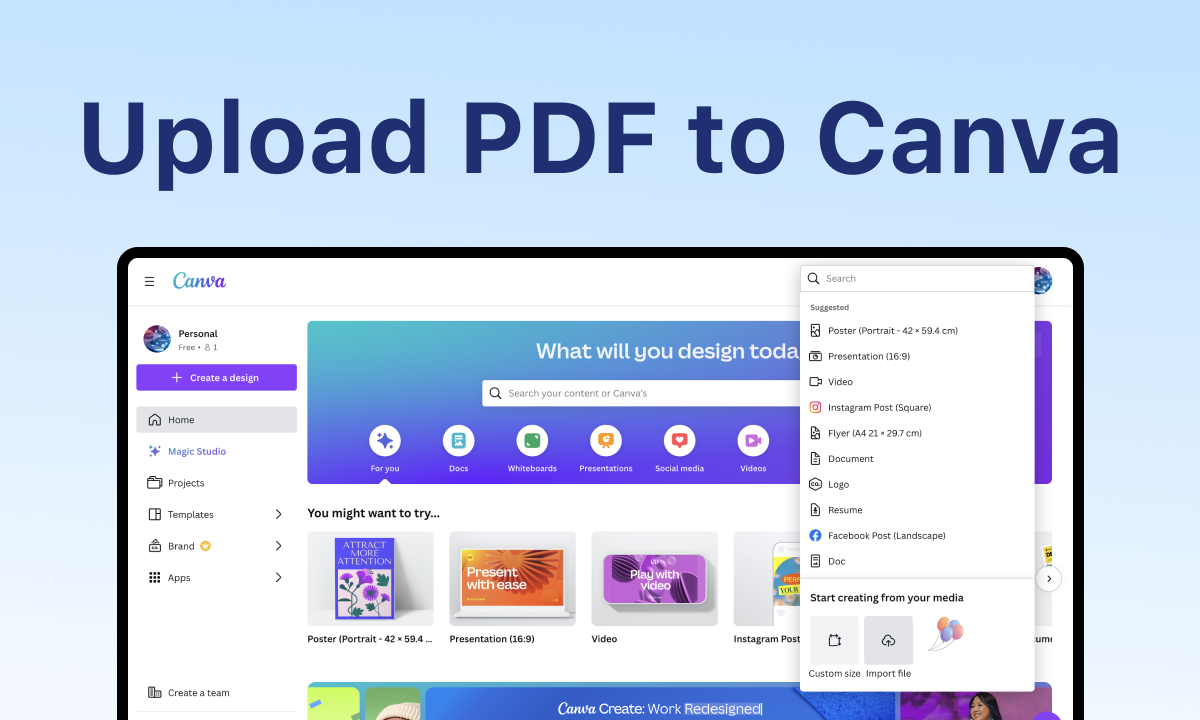
Upload a PDF to Canva
Many users want to upload their PDF templates to Canva for document editing but aren’t sure how. Don’t worry—this post will guide you through the process of converting PDFs to Canva, whether you’re using a browser or the app.
How to Convert PDFs to Canva Using a Browser
Canva’s web-based graphic design tool supports over 10 file formats for uploading. Besides, it enables saving the design as PDFs.
With only a few steps, it’ll complete importing a PDF file for further editing.
Step 1. Visit Canva’s official web > Before any file importing, you need to click the buttons at the upper right corner to sign up or log in to Canva.
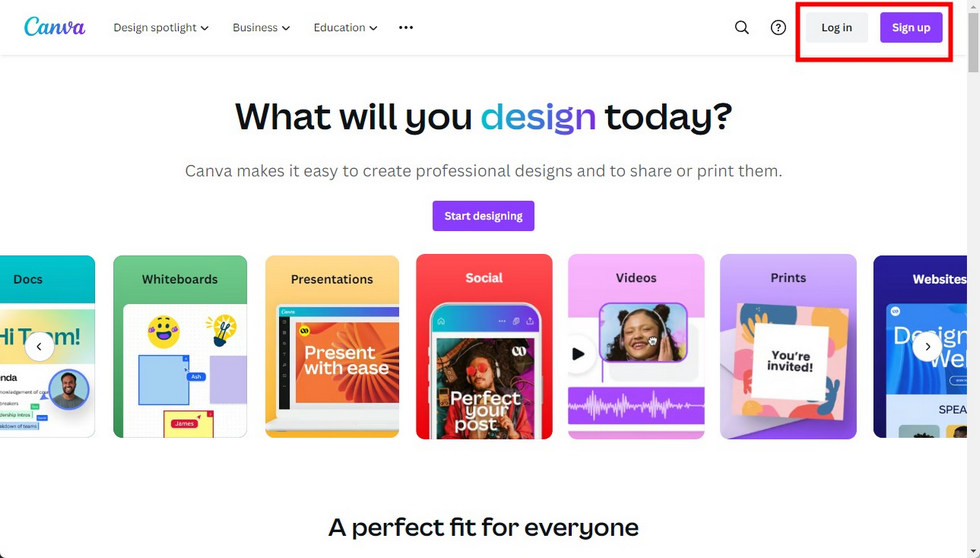
Log in to Canva Online
Step 2. Locate and click the “Upload” button on the right side > Choose the PDF from your device > Click “Open”.
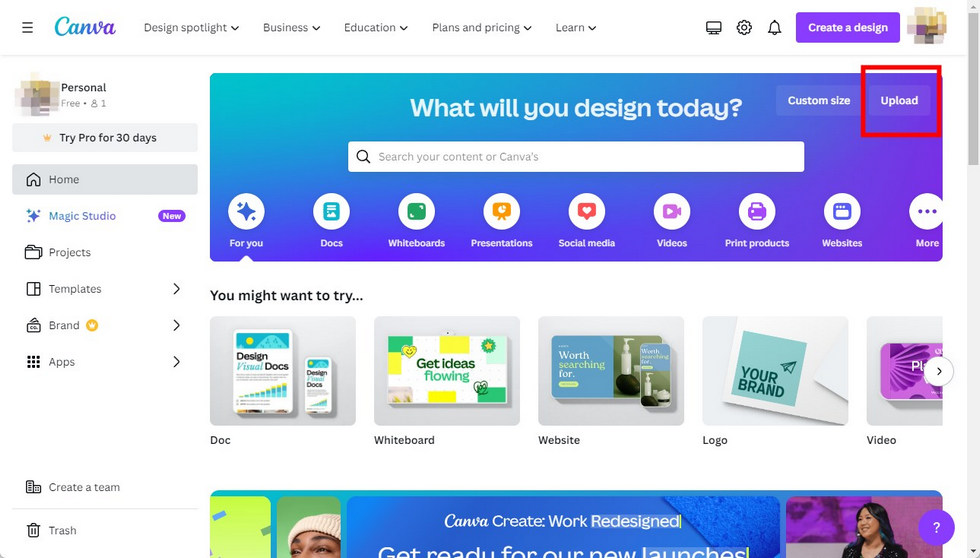
Upload a PDF to Canva Online
Or if you’ve got into its “PDF Editor” page, click the “Upload Your PDF” button > Choose the PDF from your device.
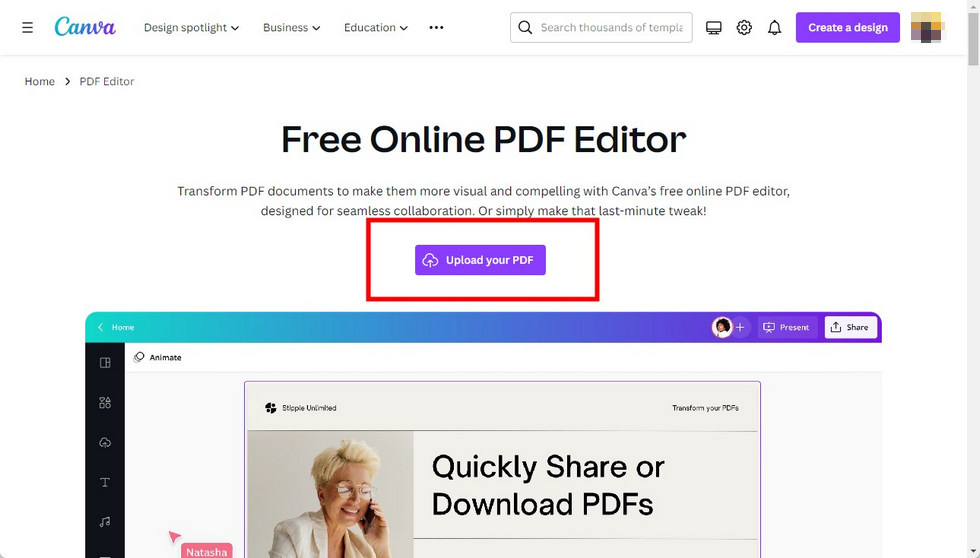
Import a PDF to Canva PDF Editor Online
While Canva can efficiently open a PDF, there are certain limitations you need to notice:
- The imported PDF is sized up to 100MB.
- Pages of the imported PDF shall not exceed 300.
- Scanned PDFs are processed as images: Canva cannot extract text and design elements from an image-based file.
- Interactive elements like filling boxes within PDFs may not work after uploading.
How to Convert a PDF to Canva Using the App
Utilizing Canva to edit existing PDFs on mobile greatly streamlines user tasks. Being connected to the internet, you can upload PDFs to Canva anytime, anywhere. Let’s see how to get it done:
Step 1. Open Canva on the Phone
Step 2. When Canva is open, tap the plus “+” icon at the bottom of the interface.
Step 3. In the project selecting menu, tap the upload icon from the “Start creating from your media” section.
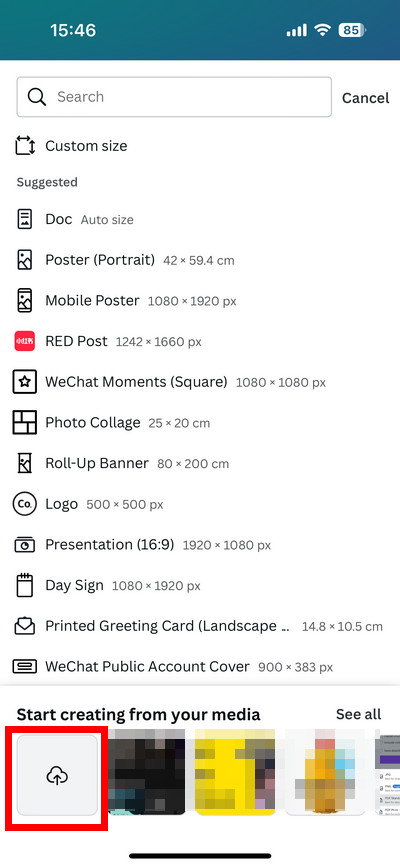
Upload PDF Files to Canva on Mobile
Step 4. Select “Choose File” from the follow-up menu > Choose the PDF to upload.
Step 5. Back to the home page, you’ll find the PDF’s thumbnail presented in the “Recent designs” section > Tap the file to open.
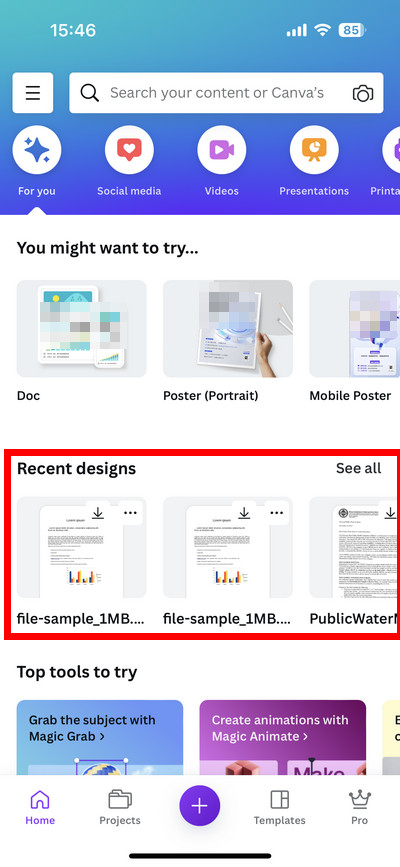
Open the Uploaded PDF in Canva on Mobile
The Best Alternative to Open and Edit PDF Files
A notable drawback when uploading PDFs to Canva is that the fonts and formatting within the file may change, which can hinder readability and printing. Therefore, you may consider using a professional PDF editor instead.
PDFgear is the top-notch option for importing and editing PDFs across platforms. It’s free, safe, full-featured, and easy to use.
PDFgear is a well-tooled PDF editor. It covers diverse file design demands, including
- add, delete, highlight the text, or change the text color
- create fillable fields, lines, shapes, stamps, watermarks, signatures
- create or remove links
- insert, delete, move, or rotate images
- screenshot, crop, OCR pages, and more.
Whether you import to its online editor or software, the file formatting will retain the same:
Step 1. Install PDFgear and launch it on your Windows, Mac, iPhone, or iPad.
Step 2. Select or drop a PDF to open.
Step 3. Utilize the tools at the top to design the files. Pages rearrangement is also feasible in PDFgear.
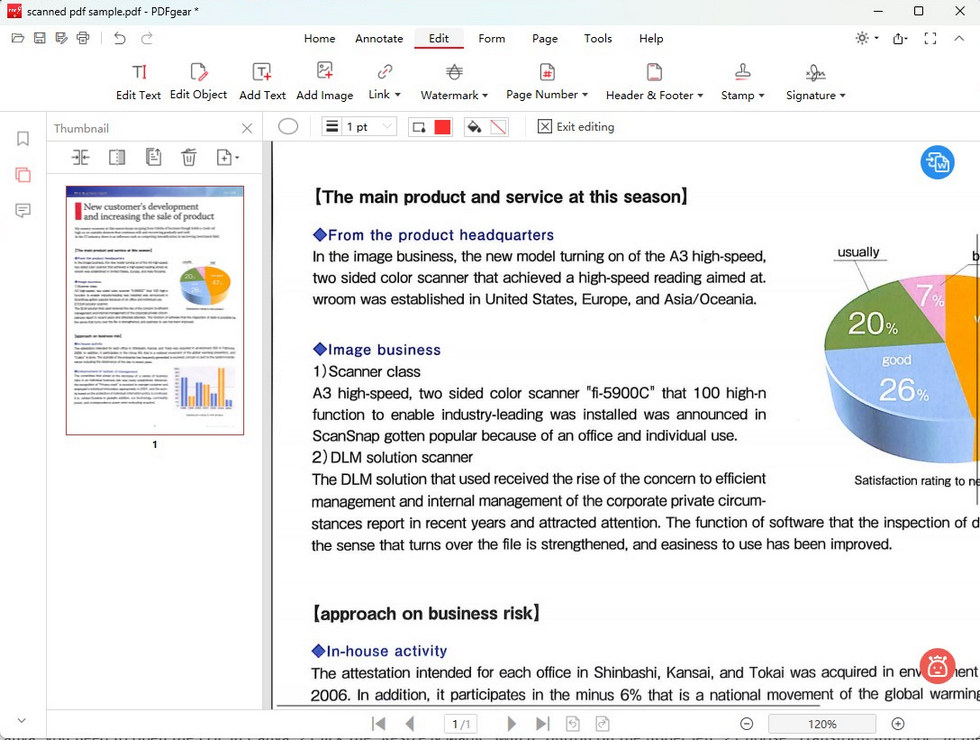
Design a PDF in PDFgear
FAQs
How do I convert a PDF to Word in Canva?
To convert a PDF to Word in Canva, you need to open the PDF in Canva > Click the “Resize & Magic Switch” button on the upper left > Choose “Transform into Doc” in the follow-up menu > Select text format > Click “Continue” > Click “Transform to Doc”. Bear in mind that the PDF-to-Word feature is only available for its premium version.
Can I convert PDF to image in Canva?
Yes, you can convert PDF to image in Canva. The PDF uploaded to Canva can be saved as JPG and PNG formats. When the PDF is open in Canva, click the “Share” button > Choose “Download” > Select JPG or PNG in the “File type” menu > Click “Download”.
Can I edit the text within a PDF in Canva?
Yes, you can edit the text in the text boxes of a PDF in Canva. However, text editing is not feasible for scanned PDFs or PDFs with interactive elements.
How can I customize the design of a PDF in Canva?
To customize the design of a PDF in Canva, you can select the templates provided by Canva, edit the text, add images and graphics, adjust colors and layout, apply effects, etc.
