How to Make PDF Landscape from Portrait for Free

Summary :
Learn how to make a PDF landscape permanently with PDFgear online or offline, rotate one page, and keep text upright using the Print method.
Table of Contents
PDFs often end up in the wrong orientation, especially after scanning or when a file includes wide content.
Common real-world scenarios:
- A scanned PDF opens sideways
- Wide tables don’t fit on portrait pages
- Only one page needs to be landscape
This guide shows simple ways to make a PDF landscape online or offline, rotate only the pages you need, and handle the special case where you want a landscape page without rotating the text.
If you just need a quick fix, start with the fastest online method below, which lets you rotate a PDF to landscape in seconds.
Quick Start: Make PDF Landscape in Seconds
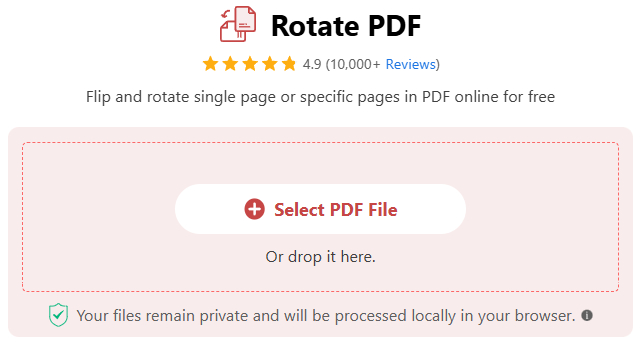
1. Drag your file into PDFgear Online Rotator.
2. Use the upper-left button to rotate all pages.
3. To adjust a single page, click the rotate button on that page.
4. Click the Rotate button to download the rotated file.
For tasks like changing the page setup without turning the text sideways or handling larger PDFs with more editing tools, the PDFgear desktop app offers more flexibility.

Make PDF Landscape from Portrait Online for Free
Detailed Guide: Make PDF Landscape Online Permanently
The quick method above works well for most users. If you want a closer look at how online rotation works and how to save the changes permanently, here’s a more detailed walkthrough using PDFgear Online Rotator. It’s free, works directly in your browser, and helps protect your privacy since your file isn’t uploaded to third-party services.
PDFgear Online Rotator is especially useful when you need the change to stay in the downloaded file, not just appear rotated while viewing. Compared with basic browser viewing tools like Edge or Chrome, it also gives you more control over which pages to rotate.
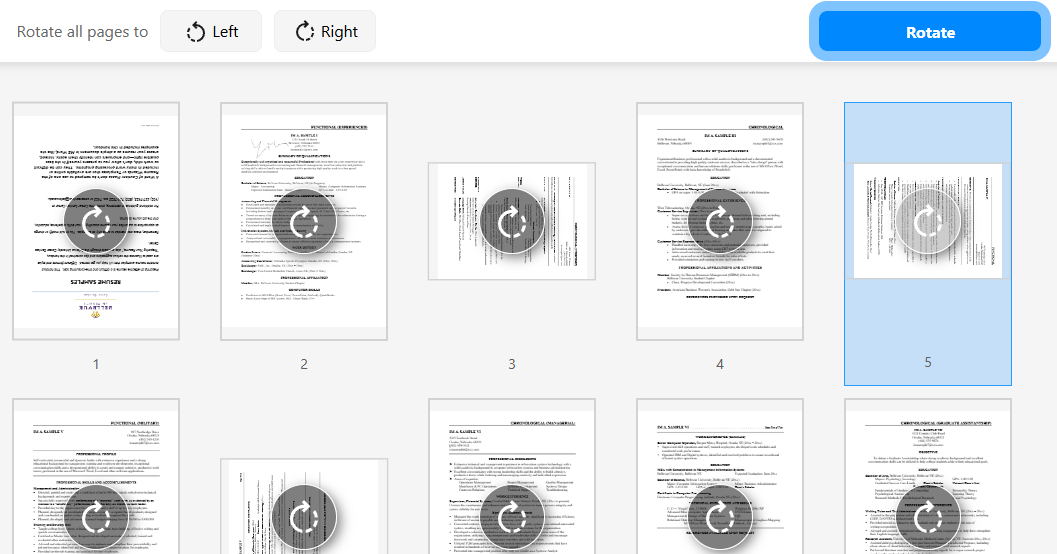
Make PDF Pages from Portrait to Landscape with PDFgear Online Rotator
1. Upload your PDF to the PDFgear online rotator.
2. Choose how you want to rotate the pages. You can rotate all pages at once if they need the same orientation, or select specific pages if only some pages need to be changed to landscape.
3. Click Rotate to save the landscape PDF. The rotation will be applied permanently, not just for viewing.
Why PDFgear Online Works Better
- No forced sign-up, use it without an account
- Supports single-page rotation, not just whole documents
- Keeps the original layout without converting formats
- Completely free with no hidden fees or limits
This works best when you want a fast solution without installing software, and the rotated PDF is saved permanently after download.
More Flexible: Make PDF Landscape Offline
If you need more flexible page selection, PDFgear software gives you more control than the online rotator. It works offline for free across all platforms and is better suited for longer or more complex PDFs.

Change Orientation Permanently with PDF Portrait to Landscape Converter
1. Download PDFgear, then open your PDF in the app.
2. Go to Page. In the page box, enter the pages you want to rotate:
- Specific pages (for example: 1, 8)
- A page range (for example: 5-12)
- All pages: enter 1-[last page number] (for example: 1-20)
3. Click Rotate Left or Rotate Right, then save the file.
Why PDFgear software stands out
- It’s truly free with no in-app payments.
- No account required.
- Various page selection.
- No quality loss.
Make PDF to Landscape without Rotating Text
If you want the page to be landscape but keep the text upright, the key is to use a virtual printer. This does not print anything on paper. Instead, it creates a new PDF by laying the content onto a landscape page.
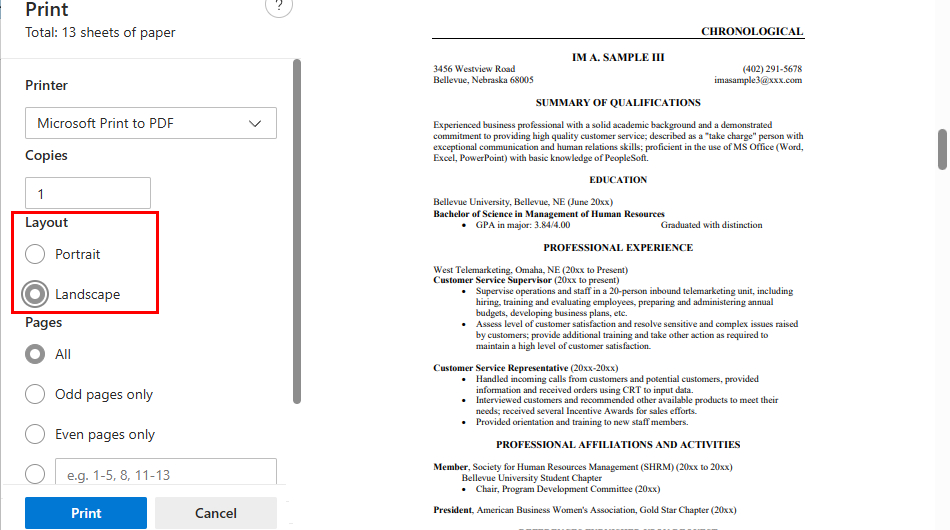
Change the Page Layout in a PDF File
1. Open the PDF in Microsoft Edge.
2. Press Ctrl + P to open Print.
3. Set Printer to Microsoft Print to PDF.
4. Choose Landscape under Layout.
5. Click Print and save the new PDF.
Warning:
This method works reliably on Windows. On macOS, even though Safari and Preview support Save as PDF, the output often rotates the text along with the page.
For consistent results on both Windows and Mac, use PDFgear’s Print feature instead.
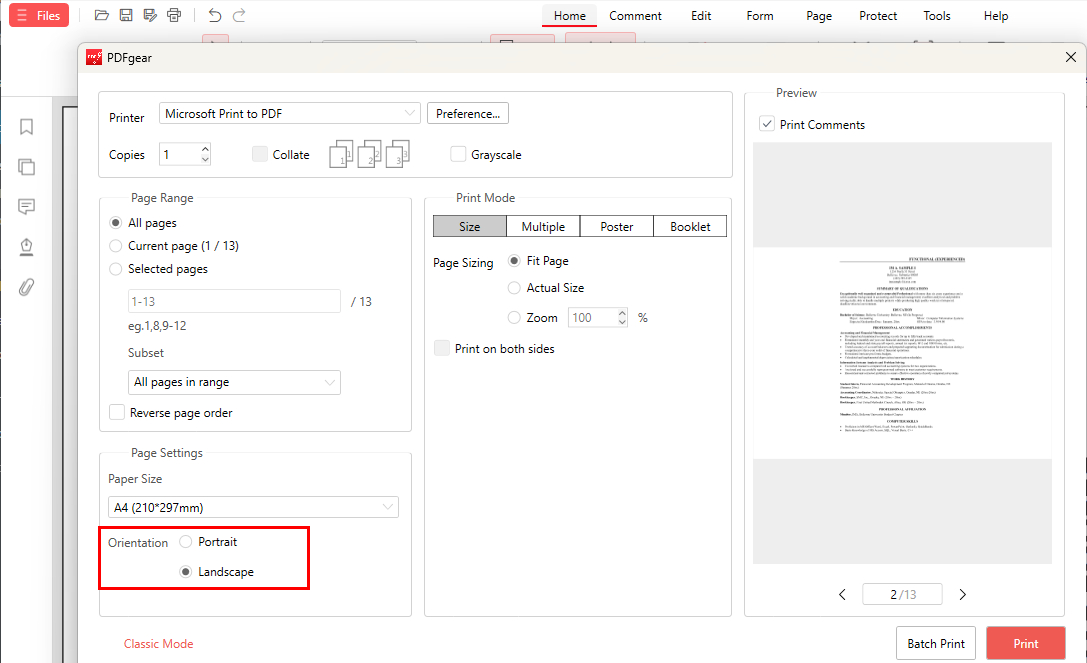
Change PDF to Landscape with Shortcut
1. Download PDFgear and open your PDF in it.
2. Click Print and set Orientation to Landscape, or use the shortcut Ctrl + P (Windows) or Command + P (Mac).
3. Click Print to save a new PDF. (Batch printing is supported.)
This works well when you need a landscape page for printing or sharing, but want the text to stay upright and readable.
Tip:
If the content looks too small or gets cut off, adjust Page Sizing (Fit or Actual Size) or switch to a larger paper size (for example, A4 to A3) before saving.
How to Rotate Only One Page to Landscape in PDF
Page-level control matters because many PDFs mix portrait and landscape pages, like a scan with one sideways page, an appendix, or a wide chart. Rotating just one page keeps everything else unchanged.
PDFgear makes this simple, and it’s free to use both online and offline.
- Online: Upload the PDF to PDFgear online rotator, then hover over the desired page, click the rotating button, hit Rotate to complete, and download the rotated file.
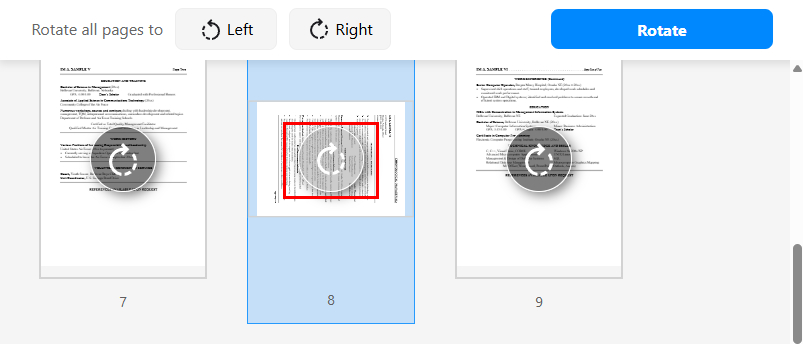
Change One PDF Page to Landscape Online with PDFgear
- Offline: Download PDFgear and open the PDF. Move your mouse to the exact page, click the rotating button on the right, then click Save or Save As to get the rotated file.
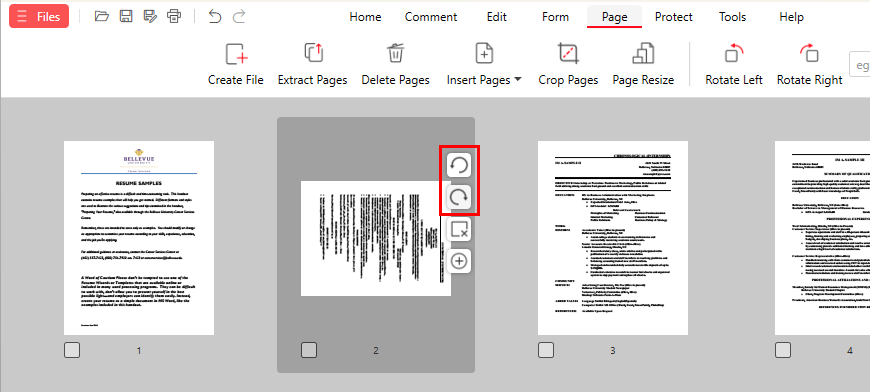
Rotate Only One Page with PDF Portrait to Landscape Converter
FAQs
How do I change the page layout in a PDF file?
PDFgear is a good option because it works across platforms. Download PDFgear and open your PDF. Press Ctrl + P (Windows) or Command + P (Mac), set Orientation to Landscape, then click Print to save a new PDF. This changes the page layout without rotating the text.
How do I rotate a PDF using keyboard shortcuts?
Some PDF viewers support quick, temporary rotation shortcuts that won’t be saved. For example, Edge may rotate the view with Ctrl + ], and Adobe Acrobat can rotate the view with Ctrl + Shift + ].
Why does my text rotate when I change orientation?
In most cases, rotating a PDF turns the entire page, including the text. If you want the page to be landscape but keep the text upright, use a Print to PDF method or PDFgear’s Print feature to create a new landscape PDF instead of rotating the page.
What’s the easiest way to make a PDF landscape on Windows or Mac?
For quick changes, use an online PDF rotator. If you want more control or need to work offline, PDFgear on Windows or Mac lets you rotate specific pages and save the result permanently.
Do I need a temporary or permanent landscape PDF?
If you only want to view the file more comfortably, temporary rotation is enough. If you plan to reopen, share, or upload the PDF, you should rotate the pages and save the file so the change stays permanent. See the step-by-step instructions in Method 2.
Why does my PDF look wrong after changing its orientation?
This usually happens when the wrong method is used. For example, rotating pages when you really need to print in landscape, or relying on automatic settings. Choosing the right method based on your goal helps avoid layout issues.
Conclusion
To make a PDF landscape, choose the method that matches your goal: online for quick fixes, offline for more page control, and Print when you need landscape pages without rotating text. If you want the easiest all-in-one option, try PDFgear first.
