How to Delete Text From PDF: Adobe Acrobat and Its Free Alternative

Summary :
In this post, we will walk you through how to delete and erase text from a PDF using Adobe Acrobat. For those looking for a free alternative to Adobe Acrobat, we will also introduce you to PDFgear.
Table of Contents
Unlike Word documents, PDFs are typically not easily editable once they are saved. Most documents undergo some editing before reaching the final version. But what if you’ve already saved your document as a PDF? Can you still delete specific words?
However, a professional PDF editor like Adobe Acrobat can help you make any edits in PDF like in Word. Now, let’s take a closer look at how to use Adobe Acrobat for removing and erasing text from PDFs effortlessly.
Delete Text From a PDF With Adobe Acrobat
If you’re using Acrobat Pro, you’ve got all the tools for PDF editing. Whether you need to white out or black out text in your PDF, the Pro version offers the flexibility to redact sensitive information easily. For precise text editing, Adobe Acrobat is your best tool to remove individual words in a PDF.
Step 1. Open the PDF file you want to edit in Adobe Acrobat.
Step 2. Simply open the sidebar on the right and select “Edit PDF”.
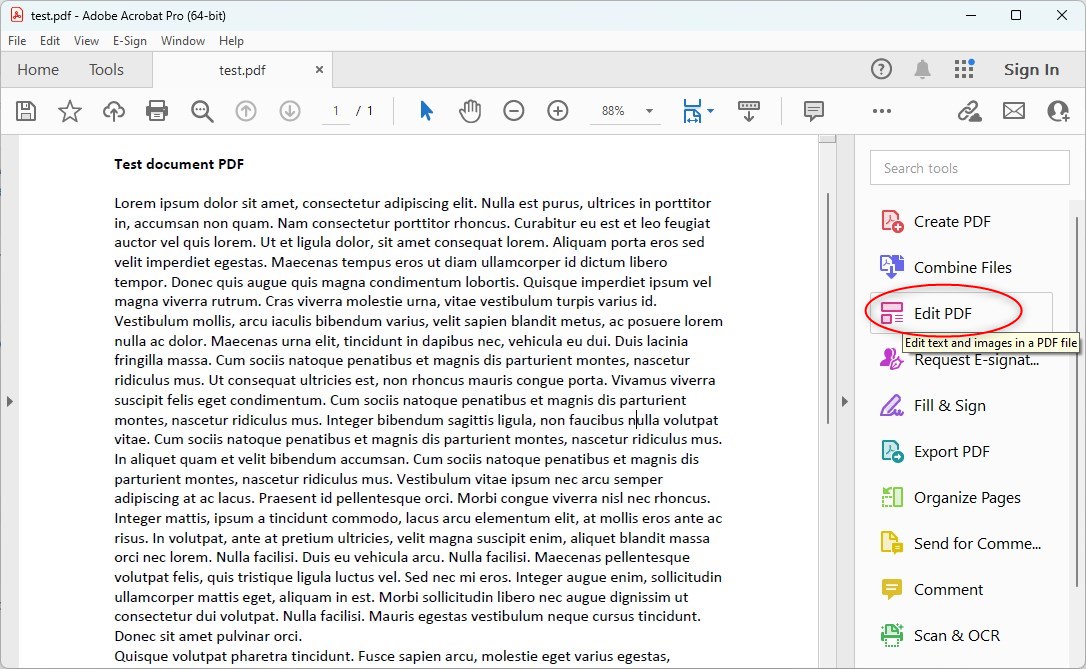
Open the Edit PDF Tool in Acrobat
Step 3. Choose a text section and make your edits in the PDF or remove words using your keyboard.
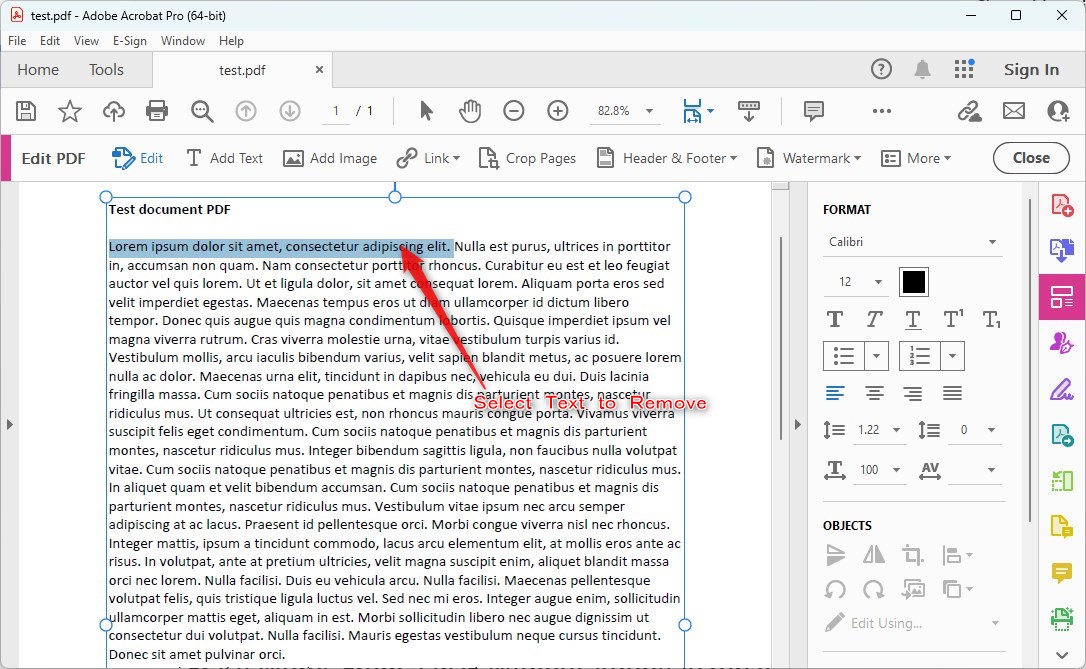
Select Text to Remove
Step 4. To delete entire text sections, highlight the block and click “Delete.”
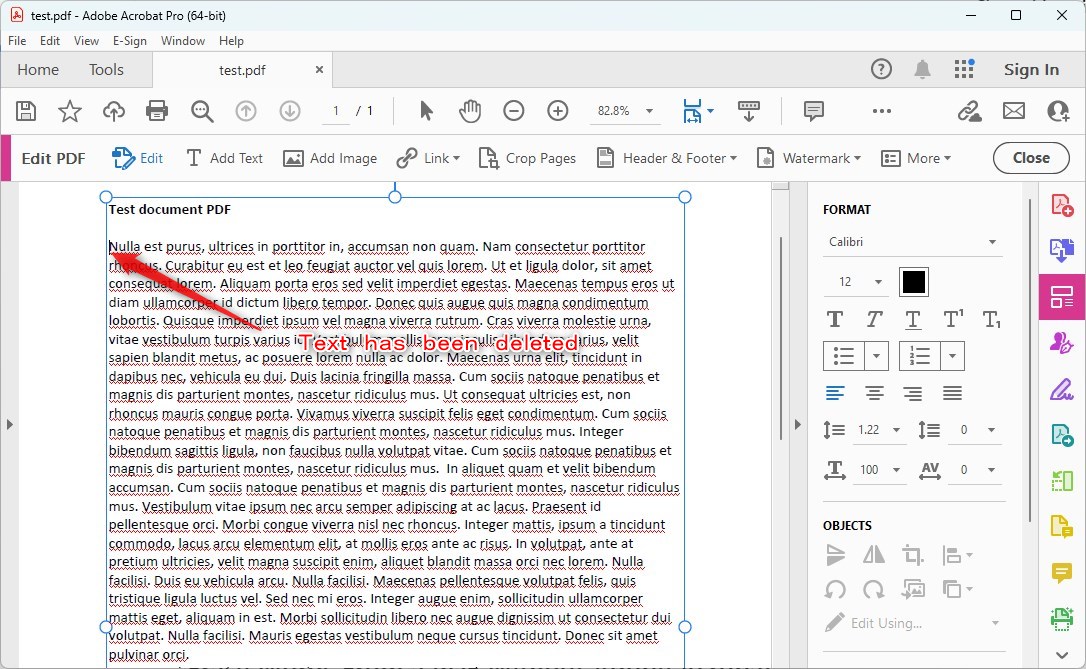
Delete Text in PDF with Acrobat
Step 5. Don’t forget to save your PDF with the changes you’ve made.
Erase Words From a PDF Without Adobe Acrobat
PDFgear is the best free alternative to Adobe Acrobat, a truly free PDF application that focuses on solving PDF-related tasks for users. The PDF text editor implementation is very strong. It doesn’t treat each word as a separate block of text. Editing or deleting any word does not move the other text accordingly.
For example, if I replace a short word with a long word, the longer word now does not overlap the next unedited word. Or if you delete a word, it won’t create a gap in the paragraph; the next word does take its place.
PDFgear is a free alternative to Adobe for deleting text in PDF. It allows you to add, edit, and delete text, much like how users edit documents in Microsoft Word.
Step 1. Import the PDF File
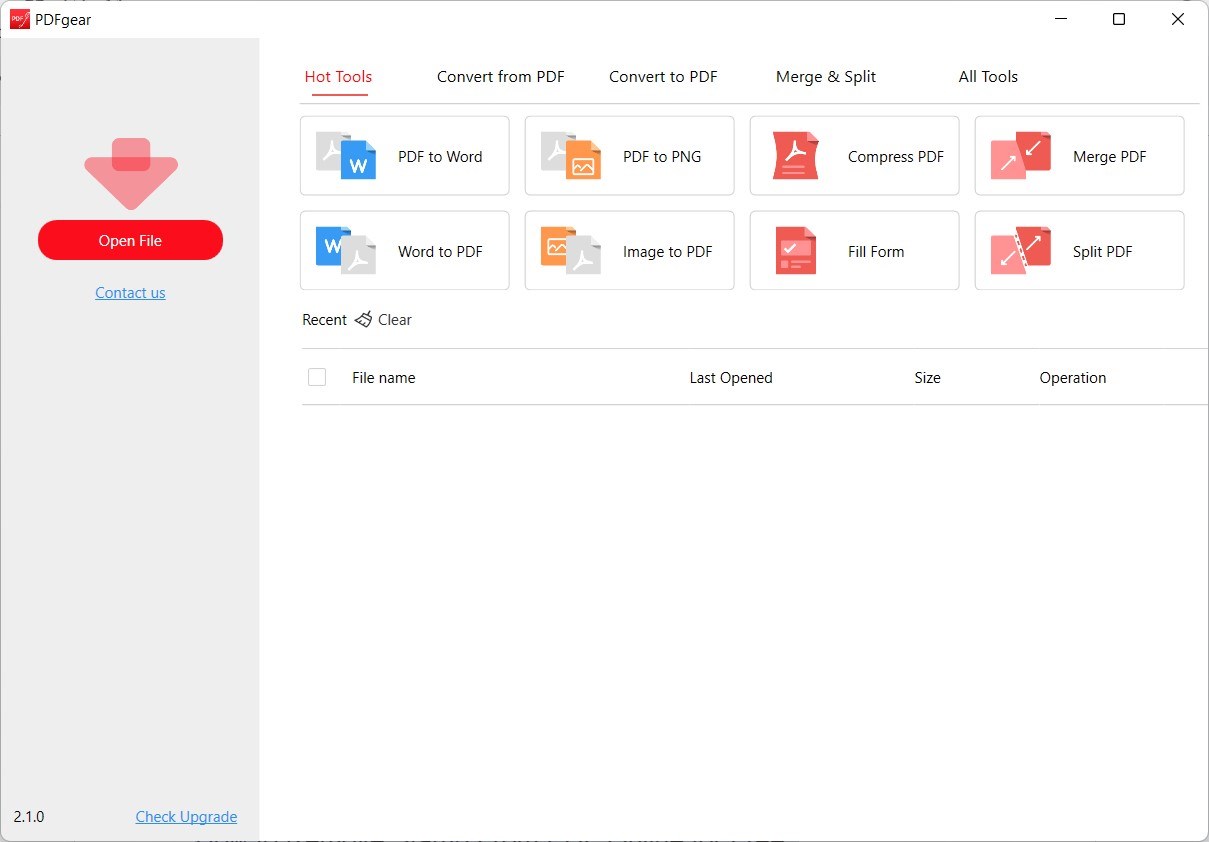
Download and install the PDFgear desktop app, and then open this application.
Open a PDF Using PDFgear
Import your PDF file by clicking on “Open File” and browsing for the PDF document from which you want to remove the text.
Step 2. Choose the Edit Text Option
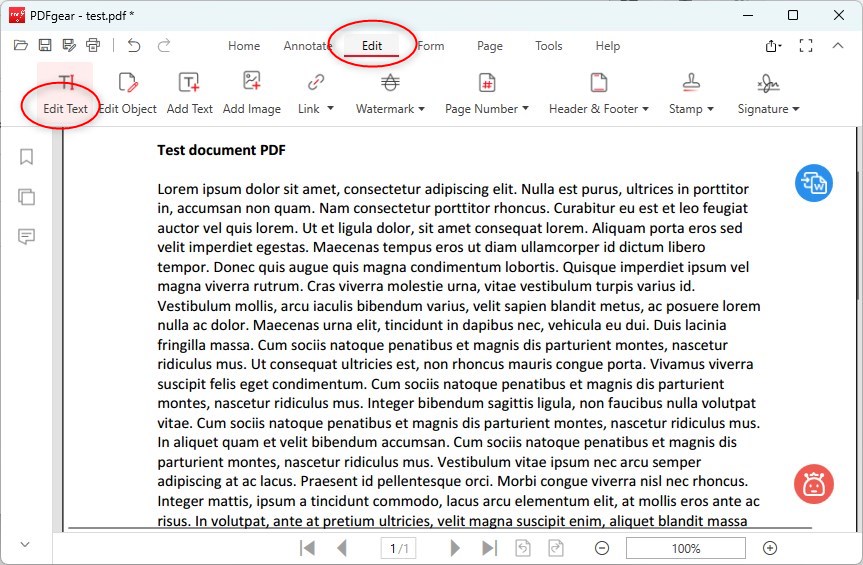
After opening the PDF file within PDFgear, you should be able to see it in the PDF view mode.
Edit Text in PDFgear
Click on the “Edit” option in the top menu. From the “Edit” menu, select the “Edit text” option.
Step 3. Delete Text from the PDF File
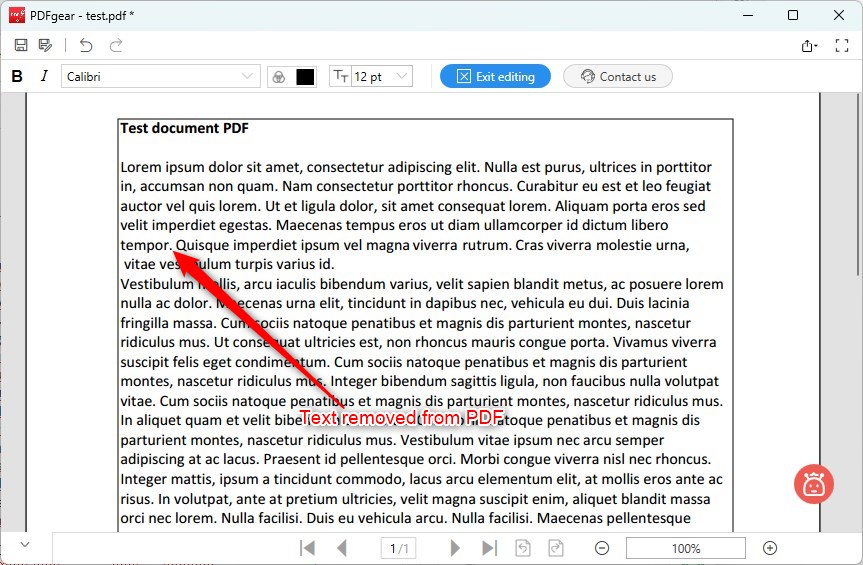
With the “Edit text” option selected, you can now select the text you want to remove. Click and drag your cursor over the text to highlight it.

Select Text to Delete
Once the text is highlighted, press the “Delete” key on your keyboard. This action should remove the selected text from the PDF.
Text Removed from PDF
FAQs
How to Edit Existing Text in PDF?
To edit existing text in a PDF, simply open your PDF document in the PDFgear application. Choose ‘Edit Text‘ under the ‘Edit’ tab, and then you can add, replace, or delete any existing text in the PDF. Click ‘Save’ after you’ve made your changes to save your PDF file.
Is There a 100% Free PDF Text Editor?
Yes, PDFgear is a completely free PDF text editor that allows you to edit your PDF like in Word. You can access all its advanced editing features for free without any restrictions. PDFgear won’t even add any intrusive watermarks to your exported PDF files.
How to Add Text in PDF for Free?
PDFgear provides you with two free ways to add text to a PDF. One way is to use the ‘Edit Text’ feature to add new text in the existing paragraph, and another way is to add text by inserting a text box into the PDF.”
How to White Out Text in a PDF?
Open the PDF file you want to white out text in PDFgear. Find the “Annotate” option, then click on “Rectangle.” Use your mouse to choose the area where you want to hide text. Change the color inside the selected area and the border color to white.
Conclusion
Unlike some other tools that merely hide the text, Adobe Acrobat and PDFgear both do not create a gap between the deleted text and the next text.
There is no doubt that Adobe Acrobat is a dedicated tool for text editing within PDF documents, but the text removal feature is not free. If you are looking for a free alternative to Adobe Acrobat or other PDF editing tools, PDFgear is here for you.
