How to Copy Tables from PDF to Excel
Summary :
On this page, you’ll find the best ways to effectively copy tables from PDFs into an Excel file, with the original formatting and layout, instead of pasting the tables into one cell.
Table of Contents
We’ve all been there: when you directly copy-paste a table from a PDF to Excel, the data does end up dumped into a single cell, or a single column, completely losing its tabular structure.
Now let’s get your data into Excel the right way, maintain the table’s layout, and easily work with the data in separate cells and columns – like this:
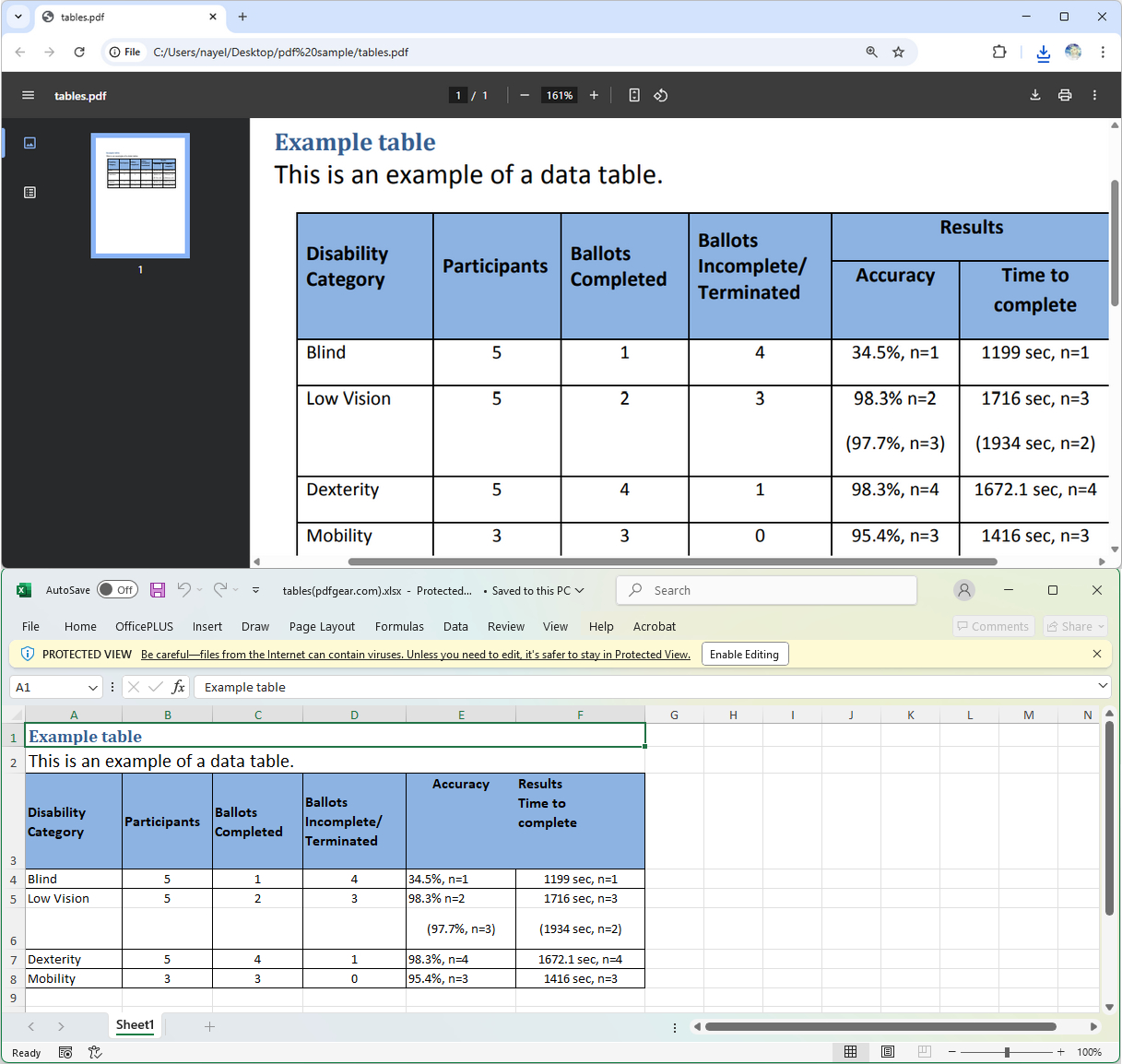
The Right Way
The Problem with “Copy and Paste” (and Why We’re Mostly Ditching It)
While direct copy-paste might be the first thing many people try, it often leads to a major headache: it frequently dumps all your table data into a single cell or a single, jumbled column in Excel, completely losing its tabular structure.
This happens because PDFs are built for consistent visual presentation, not for easy data extraction. The underlying text might not be stored with clear column or row delimiters that Excel can reliably interpret when you simply paste.
So, if preserving your table’s layout is the goal, direct copy-paste is generally NOT a good idea and should be avoided unless you have an extremely simple, text-based table and are prepared for significant manual cleanup.
Convert PDF Tables to Excel Online for Free (Same Formatting)
PDFgear’s online PDF to Excel converter is a free, handy, and accurate way to copy tables from PDF to Excel while preserving the original formatting and layout. When you need quick, reliable results without software installation. It’s a great choice.
How PDFgear Works
It works by converting the entire PDF content, including tables, into an Excel file. It intelligently detects tables, understands cell structure, and recreates the tables inside Excel so you keep formatting, merged cells, and styling. This ensures that the resulting Excel spreadsheet mirrors the original PDF layout as closely as possible.
The steps are simple:
- Go to the PDFgear Online Excel to PDF Converter. Click the “Select PDF file” button to open the PDF with tables.
- The conversion process starts automatically. PDFgear will extract content and tables from the PDF to Excel.
- Click “Download” to save your new .xlsx file to your computer.

However, you should note that PDFgear only works with selectable PDFs. If you convert a scanned PDF with it, you’ll get an image table in the output Excel file.
(Optional) Use Desktop Version for Bulk Conversion: If you have particularly large PDFs, need to process many files at once, or prefer working offline, you can download PDFgear’s free desktop application. In the desktop app, select “PDF to Excel,” add your files, set your desired page range and output location, and then click Convert. The desktop version offers unlimited conversions without file size limits.
Why It’s a Top Free Choice
- Completely Free & No Sign-in: Offers powerful features without any cost or hassle.
- Layout Preservation: Designed to keep your table’s structure, fonts, and colors intact.
- Online & Offline Options: Provides flexibility for single files online or bulk conversions via PDFgear’s desktop app.
Use Excel’s Built-in “Get Data from PDF” (Your Best Bet!)
For users of Excel 365 and newer versions, this is your absolute go-to method. Microsoft has significantly improved its PDF import capabilities, powered by Power Query, making it surprisingly effective at recognizing and importing tables with their layout intact.
How It Works:
- Open Excel and navigate to the Data tab.
- In the “Get & Transform Data” group, click Get Data > From File > From PDF.
- Browse and select your PDF file, then click Import.
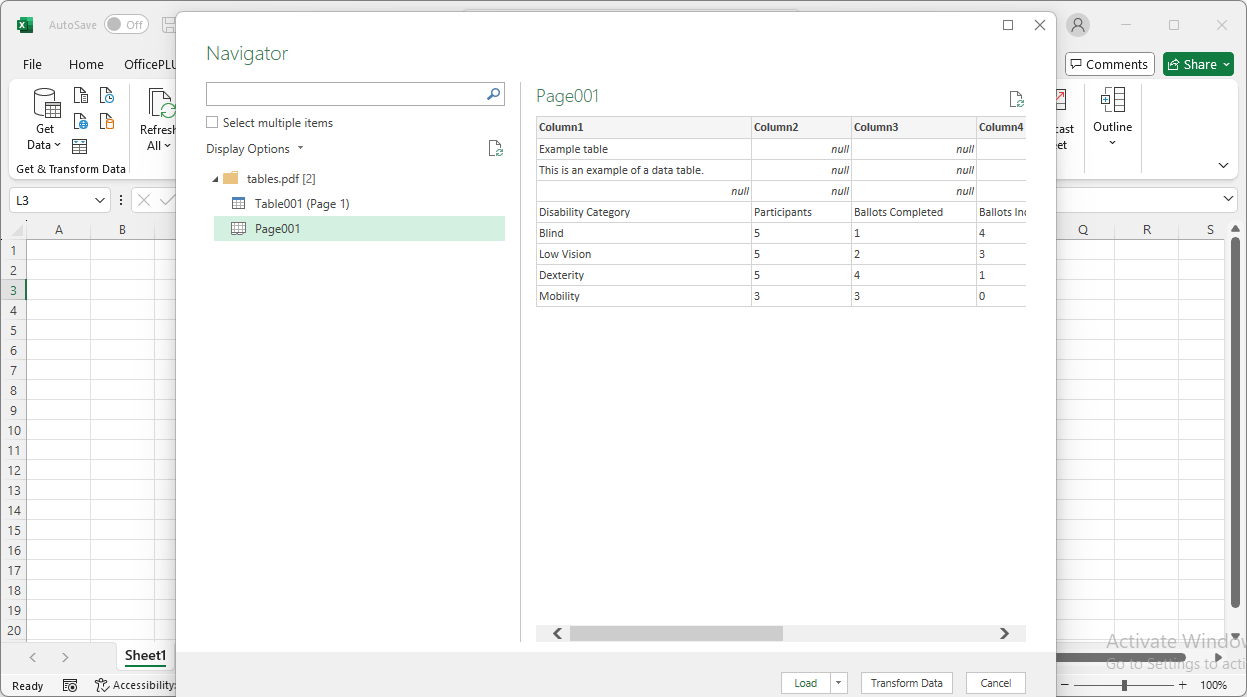
- An intelligent Navigator pane will appear. This is where Excel shows you all the tables and even individual pages it has detected within your PDF.
- Crucially, select the table(s) you want to import. You’ll see a preview of the data on the right, showing how Excel intends to structure it in rows and columns.
- You have two powerful options:
- Click Load to bring the data directly into an Excel sheet.
- Click Transform Data to open the Power Query Editor. This is highly recommended for complex tables, as it lets you clean, reshape, and refine your data before it lands in Excel, ensuring better layout preservation and data quality. Think of it as a pre-Excel cleanup crew.
Why It’s So Good for Layout:
- Intelligent Table Detection: Excel uses algorithms to identify the distinct rows and columns, not just raw text.
- Power Query’s Power: You can preview and adjust how columns are parsed, deal with merged cells (by unpivoting or filling down), and ensure correct data types, all contributing to a clean, well-laid-out final table.
Use Microsoft Word as a Bridge (A Clever Trick!)
This is an often-overlooked but surprisingly effective method, especially if you have Microsoft Word installed. Word has a powerful built-in PDF conversion capability that can often interpret and structure tables better than a direct paste into Excel.
How to work the magic:
- Open the PDF with Microsoft Word: Go to
File > Open, then browse and select your PDF. Word will usually pop up a message stating, “Word will now convert your PDF to an editable Word document.” Click “OK.” - Wait for Conversion: Word will process the PDF. For complex PDFs, this might take a moment.
- Copy the Table from Word: Once the PDF is open in Word and looks structured, select the table(s) you need. Copy them (
Ctrl+CorCmd+C). - Paste into Excel: Go to your Excel sheet, select a cell where you want the table to start, and paste (
Ctrl+VorCmd+V).
The table copied in Microsoft Word looks like this:

Why It’s Surprisingly Effective for Layout:
- Word’s Conversion Logic: Word uses its own logic to convert PDF content into an editable format, and this often includes a better interpretation of table structures, turning them into actual Word tables.
- Cleaner Intermediate Step: By converting to a Word table first, you’re giving Excel a much cleaner, more structured object to paste, often resulting in better column and row preservation than direct PDF-to-Excel pasting.
- Readily Available: If you have Microsoft Office, you already have this tool at your disposal.
Limitations: Word’s conversion isn’t perfect, especially for highly complex PDFs or scanned documents (though newer Word versions are improving on OCR integration). You might still need some post-paste cleanup in Excel.
Adobe Acrobat Pro (Extract Tables from Scanned PDFs)
If you have access to Adobe Acrobat Pro, this is arguably a robust and accurate method for preserving table structure, especially for complex or professional documents.
Adobe Acrobat is great at interpreting intricate PDF layouts and handling various PDF types, and it has an OCR feature to extract tables from scanned PDFs.
How It Works:
- Open your PDF in Adobe Acrobat Pro.
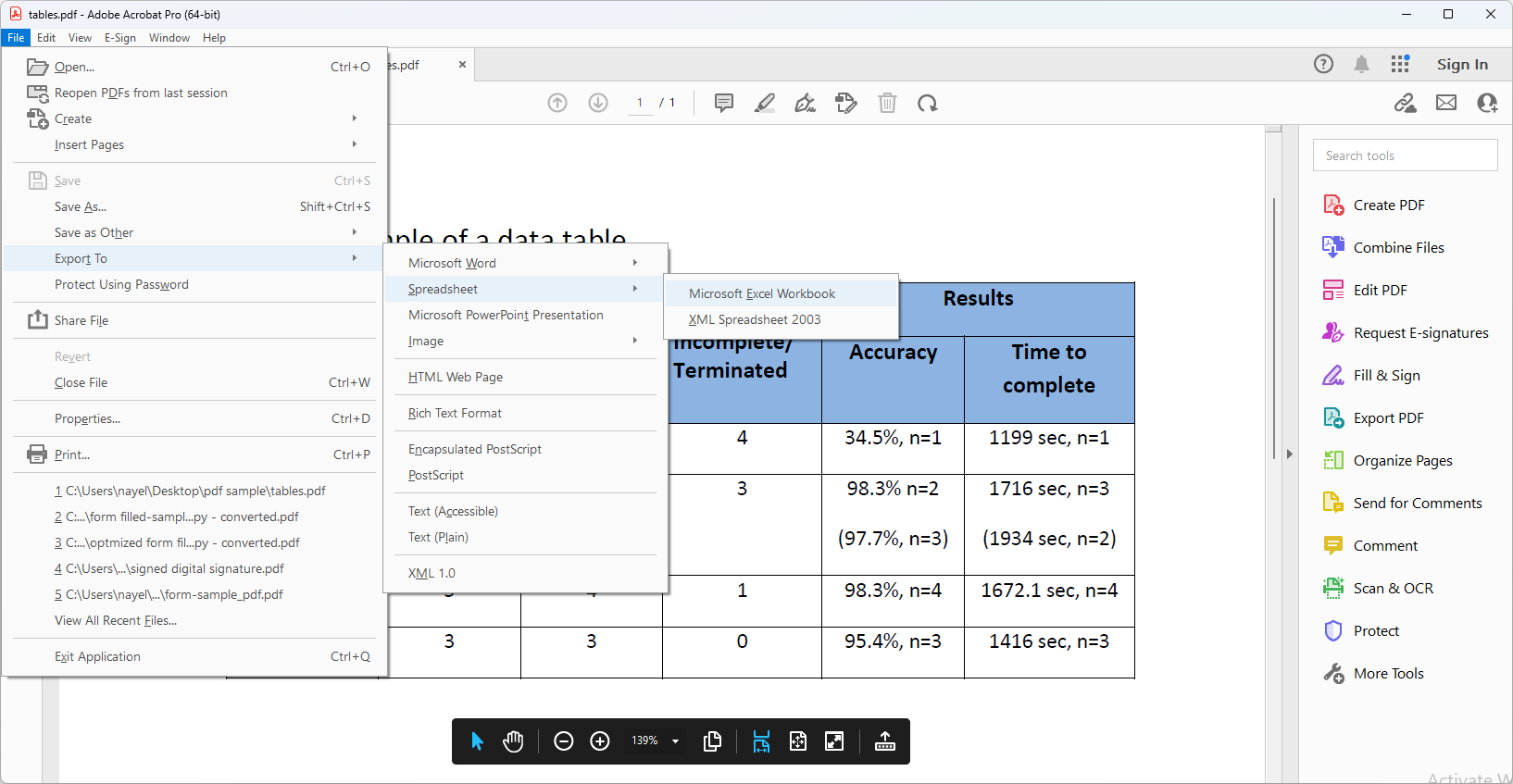
- Go to
File > Export To > Spreadsheet > Microsoft Excel Workbook. Alternatively, you can find the “Export PDF” tool in the right-hand pane or under the “Tools” menu. - Acrobat will automatically detect tables and convert them. It uses advanced algorithms to identify table structures, columns, and rows.
- Review and tidy up in Excel as needed. While highly accurate, a quick review is always recommended.
Why It Excels:
- Formatting Preservation: Known for maintaining complex layouts, merged cells, and multi-page tables with remarkable precision.
- OCR Capabilities: Handles scanned PDFs and image-based text exceptionally well, turning them into editable data.
Choosing Your Best Method
With these powerful methods at your disposal, how do you pick the right one for your specific needs? Here’s a comparison of their primary differences to help you decide.
1. PDFgear Online Converter
Cost: Free
Ease of Use: Very Easy. Simple drag & drop and download.
Layout Preservation: Good to Very Good. Designed with AI for layout preservation.
Handles Scanned PDFs (OCR): No (Only the desktop version supports OCR)
Best Use Case: For simple to moderately complex text-based or scanned PDFs, occasional use, or when you need a quick, accurate conversion without installing software. Excellent free online option.
2. Excel’s “Get Data from PDF” (via Power Query)
Cost: Included with Excel 365 and newer versions.
Ease of Use: Easy to Moderate. The initial steps are simple, but Power Query offers deeper transformation options.
Layout Preservation: Excellent. Highly effective at recognizing and maintaining tabular structures.
Handles Scanned PDFs (OCR): No, not for image-based PDFs. Requires text to be selectable.
Best Use Case: Your first choice for most text-based PDFs (where you can select text). Ideal for users with modern Excel who want powerful, built-in capabilities and potentially automated refreshes.
3. Microsoft Word (as a Bridge)
Cost: Included with Microsoft Office.
Ease of Use: Easy to Moderate. Simple open-and-copy steps.
Layout Preservation: Good. Often preserves layout better than direct PDF-to-Excel paste, as Word performs an initial structuring.
Handles Scanned PDFs (OCR): Limited. Newer Word versions have some OCR, but it’s not its primary strength for tables.
Best Use Case: A quick, convenient workaround for simple to moderately complex text-based PDFs if Excel’s direct import struggles, and you have Word readily available.
4. Adobe Acrobat Pro – The “Export” Feature
Cost: Paid subscription.
Ease of Use: Easy. Straightforward export command.
Layout Preservation: Excellent. Often the gold standard for preserving complex table structures and formatting.
Handles Scanned PDFs (OCR): Yes.
Best Use Case: For professionals, complex PDFs, heavily formatted tables, scanned documents, or when the highest level of accuracy and layout preservation is crucial. Ideal for frequent use and demanding scenarios.
