How to Convert PDFs to PSD for Free with Content Intact

Summary :
Want to convert your PDF files to PSD without content loss or distortion? These three free methods below guide you to process it efficiently!
Table of Contents
Convert a PDF to PSD
To draw on or add special visual effects to an image in PDF, Photoshop is often the option for most designers.
While you can directly open a PDF in Photoshop, elements within may be presented blurry or distorted if the original file contains complex images or layouts, and this affects further operation.
Therefore, turning the PDF file into PSD becomes indispensable for a better process, and today in this post 3 simple and free ways will be introduced to convert PDFs to layered PSD files without compromising quality.
Convert a PDF to PSD in High Quality for Free
PDFgear is a full-featured software and web service for PDF files. It supports 20+ types of conversion to make the PDF editable with original formatting.
Access to PDFgear is safe, for free, and with no credit card or email sign-in. Whether you’re using macOS, iOS, or Windows, the file is transformed efficiently and can be opened in any version of Adobe Acrobat Photoshop.
Step 1. Upload a File to Online Converter
Head to PDFgear PDF to PSD online converter, select and add a file to the converting box.
Conversion starts immediately when the PDF file is uploaded.
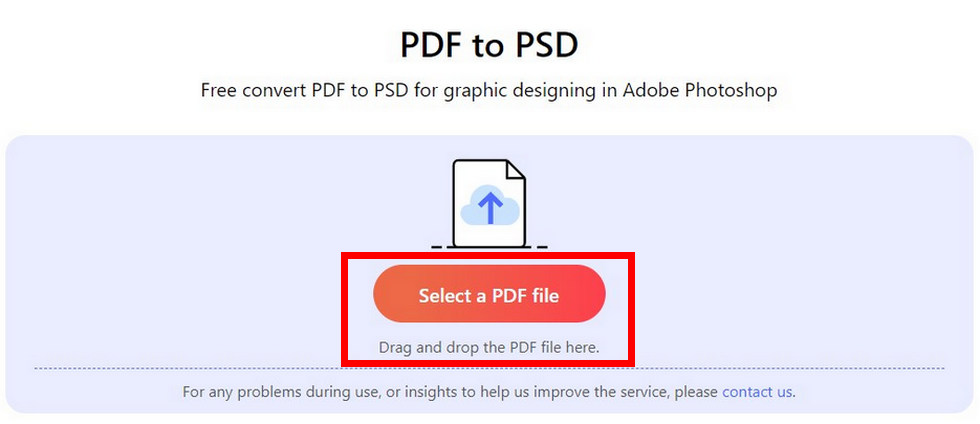
Upload a File to PDFgear Online Converter
Step 2. Download the Converted File
Press the Download button, or the Bin button to save or delete the PSD file.
The file will be kept in zip format, and you need to unzip the file before using any of the PSD images.
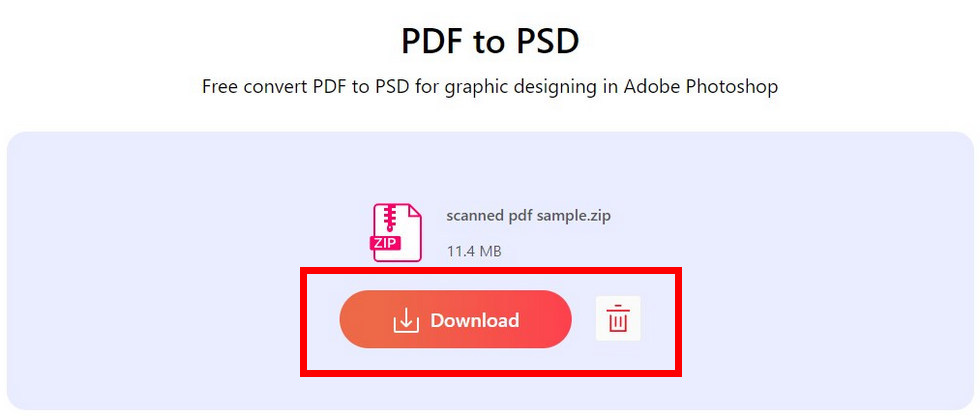
Download the PSD File from PDFgear Online Converter
Apart from PDF to PSD conversion, PDFgear provides converters like PDF to PNG, and PDF to JPG for other types of image editing. These features are available in PDFgear software as well, supporting large files and batch conversion.
Alternatives to Efficiently Export a PDF as PSD
Save a PDF as PSD with Photopea
The professional converter PDFgear is an efficient option for turning a PDF into PSD format. If you want to adjust the file before exporting it in PSD, Photopea fulfills the demands.
This web-based photo editor specializes in graphic creation and editing, and it allows saving a PDF as PSD to your device.
Open a PDF file with Photopea > Navigate to File on the topmost toolbar > Save as PSD
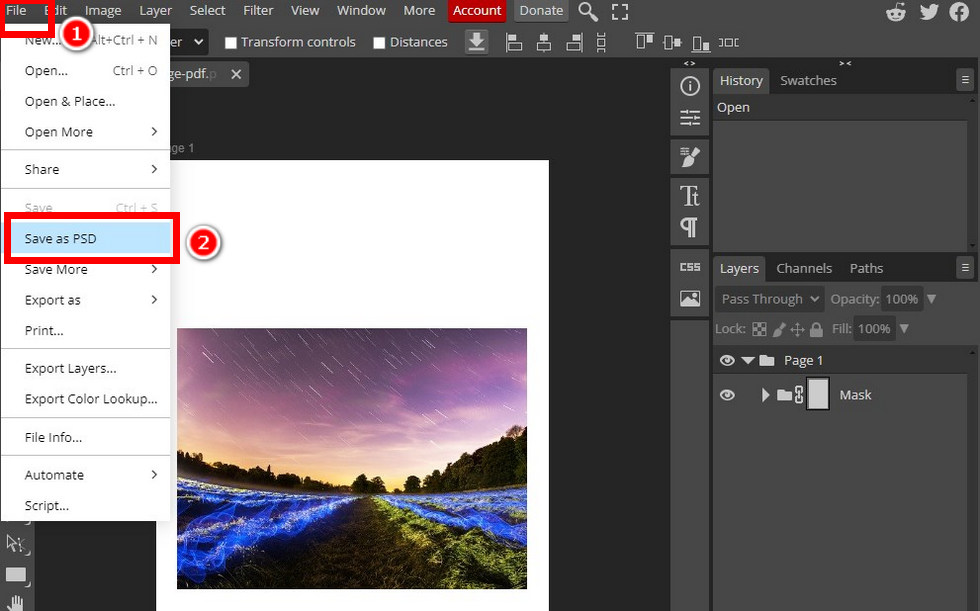
Save a PDF as PSD with Photopea
Though this image editor performs well in file transformation, as you can tell from Photopea’s interface, the ads within are a bit disturbing. Comments also indicate that the data collection of this tool may put your privacy at risk.
Convert PDFs to PSD in GIMP
GIMP is an open-source and cross-platform graphic editor. It supports diverse types of formats for file exporting and offers comprehensive features to modify your files.
The interface of this program may seem a bit overwhelming if you’re a beginner. Don’t worry, we’ll lead you through.
Import a PDF to GIMP
- File > Export As > Choose a fold to save
- Click Select File Type (By Extension) > Photoshop Image (PSD) > Export
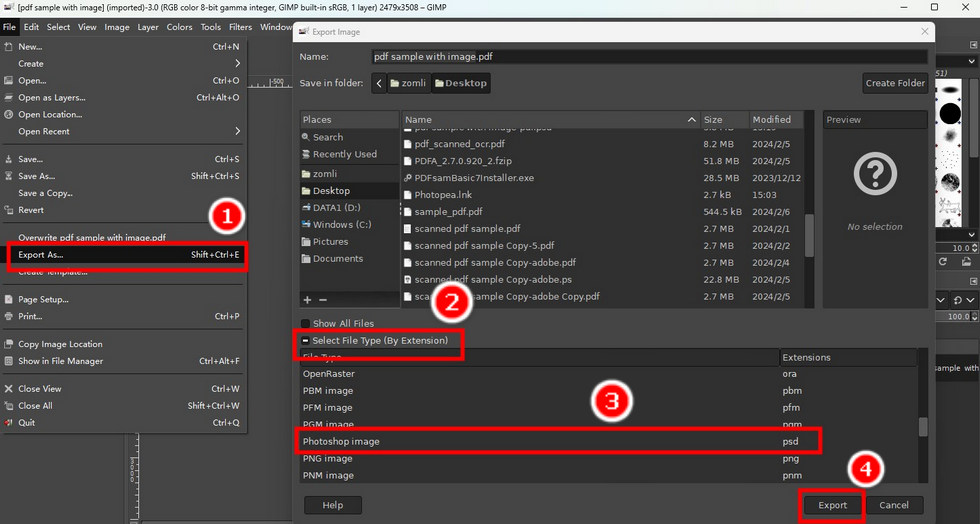
Export a PDF as PSD with GIMP
Though GIMP provides great flexibility to your file transformation, program installation is demanded to make it less convenient and space-saving for your device.
Q&As
How do I convert a PDF to an image in Photoshop?
Photoshop supports PDF conversion to multi-types of images. You can open the PDF in the software, and export it as other image file formats:
File > Export > Export As > Choose the format in which the file is exported.
Can we convert PDF to PSD with layers?
Yes, the PDFgear online converter enables high-quality PDF to PSD conversion with editable layers.
After conversion, you can open the PSD file in Photoshop and edit every layer.
What is the difference between PSD and PDF file formats?
PSD is an image file format to store layered images, containing text, graphics, and other elements. Users are allowed to edit and adjust the content within.
PDF is a widely used file format carrying text and images. Compared with PSD, it’s less editable, and the layout and formatting remain consistent across various platforms.
Wrap-up
In all, the 3 methods are effective in PDF to PSD conversion. Considering info safety and application accessibility, PDFgear is the best choice as it complies strictly with the privacy policy and provides an online converter with a clear user interface.
