13 Proven Solutions to “Can’t Open PDF” Issue on Android

Summary :
Learn about 15 proven and tested methods to successfully open any PDF file on your Android phone or tablet, and fix corrupted PDF files when needed to.
Table of Contents
The reasons that you can’t open a .pdf file vary, we’ve tried and gathered a list of most potential issues and the corresponding solutions.
Make sure to try some of the solutions, and I hope there’s at least one working for you!
Update the App
If your PDF reader app is outdated, there may be bugs or compatibility issues that prevent the PDF from opening. Please update the PDF reading app on your Android phone to the latest version.
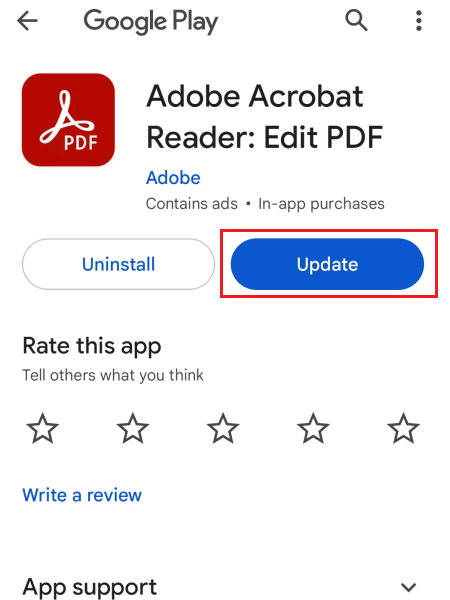
Update the App
- Using Adobe Acrobat Reader for example, go to the Play Store on Android
- Search for Adobe Reader
- Then click Update to get the latest app if it is available
Clear the Cache and Data
Sometimes, cached application data can take up too much space and slow down the application, which can cause PDF files to not open properly. Clearing the cache and data can help reset the application and resolve any performance issues.
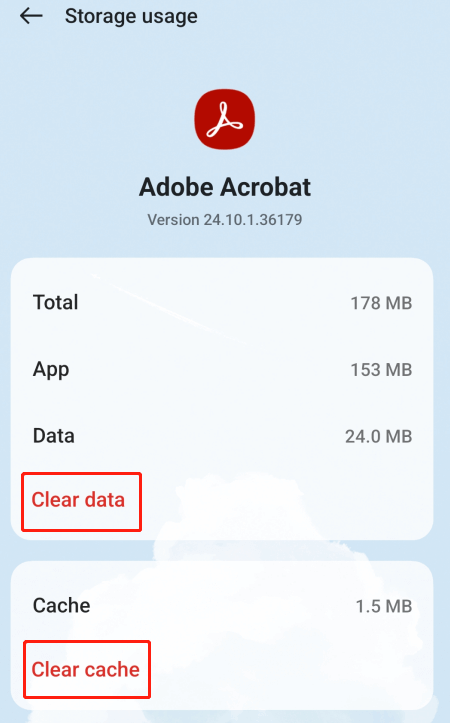
Clear Cache and Data on Android
- Go to Settings > Apps
- Choose App management > Find the Adobe Reader app
- Select Storage usage > Then tap Clear cache or Clear data
Check the PDF in Another PDF Reader
If your current PDF app cannot open the file, please try using other professional PDF readers. PDFgear app for Android is a powerful and free reader that can help you open most PDF files smoothly.
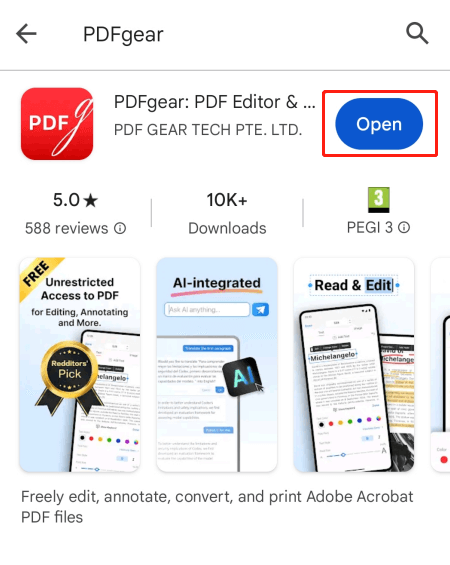
Open PDF with PDFgear App for Android
Here are the steps to use the PDFgear app for Android:
- Download and install PDFgear on your Android
- Open the app and locate the PDF file
- Click it to open and view the PDF on your phone
Unzip the File
If you’re trying to open a PDF in a .zip file, you’ll need to unzip the file first. This ensures that the file is uncompressed and in the correct format for a PDF reader to open.
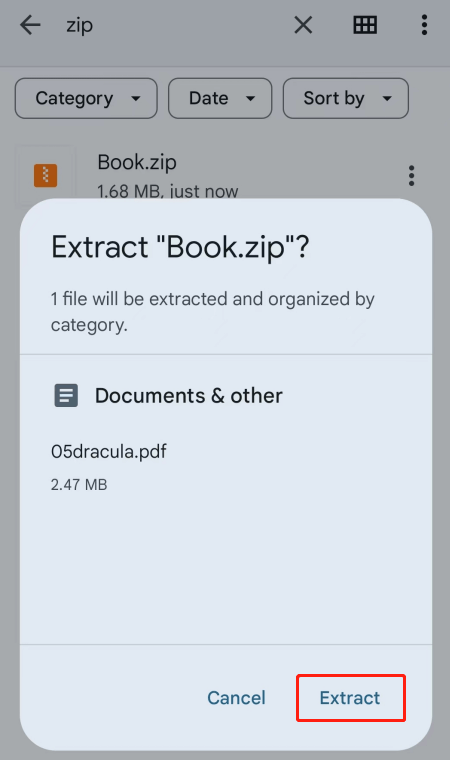
Unzip the File with Google
- You can do this by selecting the .zip file in Files by Google
- Tap the Extract option
- View the preview and tap Done
Change the Default PDF Viewer
If you accidentally set up an application that is not compatible with PDF to open the file, then you will encounter the problem of not being able to view PDF. At this time, you need to change the default PDF viewer.
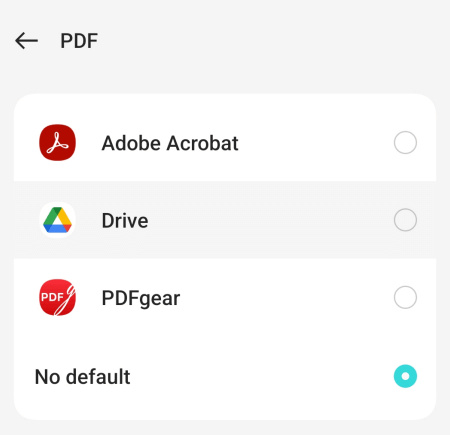
Change the Default PDF Viewer on Android
- Go to Settings on Android > Locate Apps
- Click Default apps > Find the PDF option and tap it
- From the list, set a PDF reader as the default
Open a Password-protected PDF
When a PDF is password protected, you need to unlock it before you can open it. If you know the password, you can unlock the PDF with a password using the PDFgear unlock PDF tool.
* If you don’t know the password, use Lostmypass to retrieve the forgotten password.
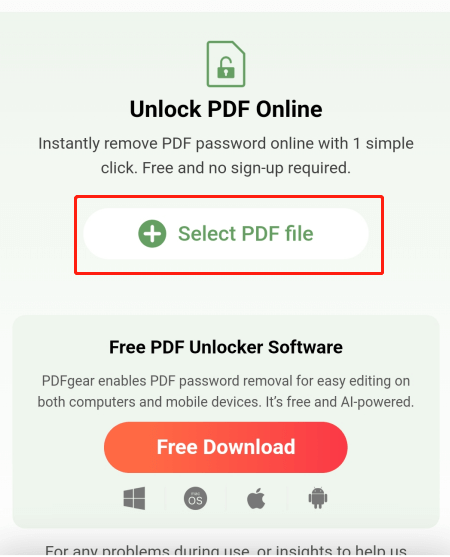
Unlock PDF Online
Simple steps to using PDFgear unlock PDF tool to remove password:
- Go to PDFgear unlock PDF tool
- Tap Select PDF File to upload the PDF > Enter the password to unlock it
- Once you’ve unlocked the PDF, you can download and open this PDF on your device
Restore Previous Versions
If you have previously saved versions of the PDF file (for example, if you use cloud storage services like Google Drive), you can restore an earlier version.
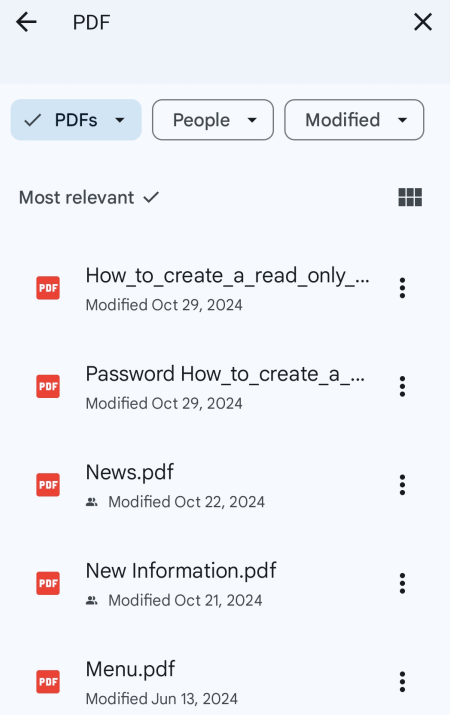
Restore PDF
- Navigate to your cloud storage where the file is stored
- Check for any available previous versions of the document
- Restore it to a point before it became corrupted
Re-download the File
If you received the PDF via email or downloaded it from a website, try downloading it again. The original download may have been interrupted or corrupted during the transfer.
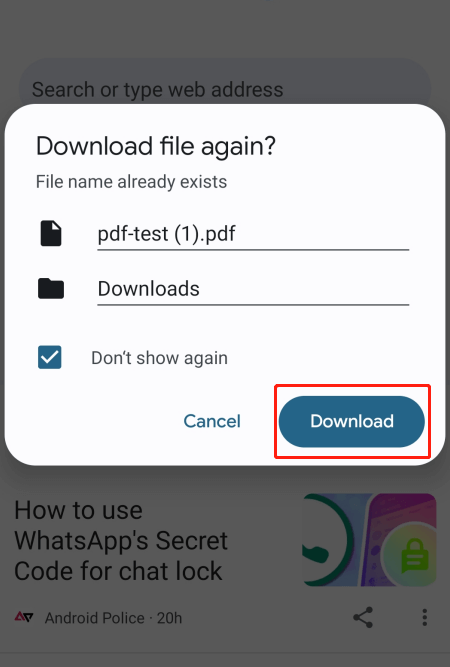
Re-download PDF
- Go to the website where the PDF was obtained
- Tap the Download button to save the PDF as new file
- Open it to check if you can view the PDF file
Check Device Storage
If your device is low on storage, it might not be able to open or handle large files. Free up some space by deleting unused apps or media files and try opening the PDF again.
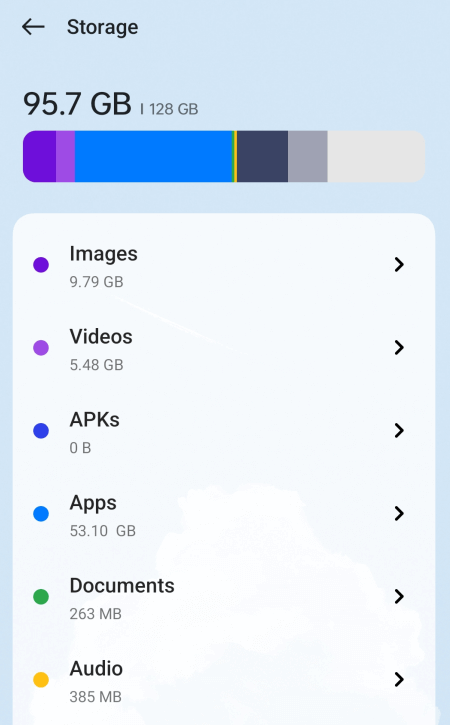
Check Storage on Android
- Go to Settings on your device
- Tap Storage and review available space
- Delete unnecessary files or apps to create space
Check App Permissions
The PDF app requires certain permissions to access files. Make sure that the PDF reader has the necessary permissions to access files on your device.
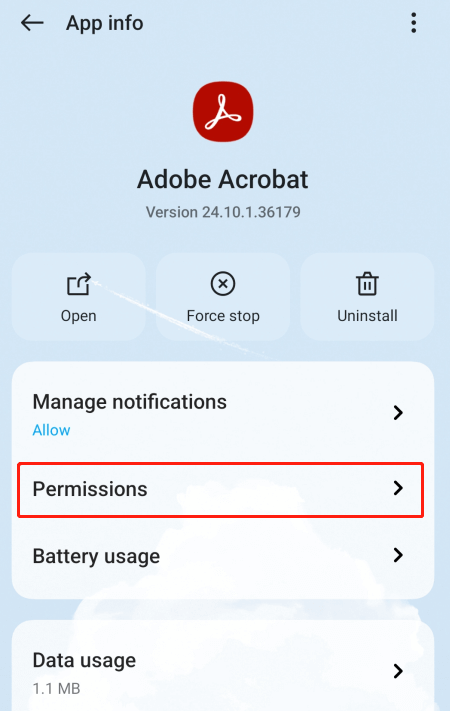
Check App Permissions
- On your Android, go to Settings > Apps
- Click App management > Select your PDF reader
- Then check Permissions
Restart Your Device
A simple restart can often resolve temporary glitches that might prevent apps from functioning properly. This method seems simple but is usually very effective.
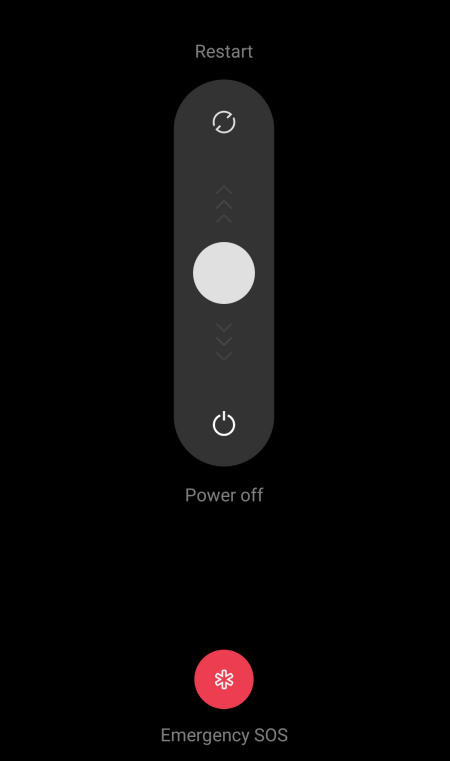
Restart Your Android
- Press and hold the power button
- From the screen, toggle the button to Restart
- Wait for the phone to restart
Disable Battery Saver Mode
Android phones will limit some app functions in power-saving mode to save power. This may interfere with your PDF reader, please try disabling it and then opening the PDF.
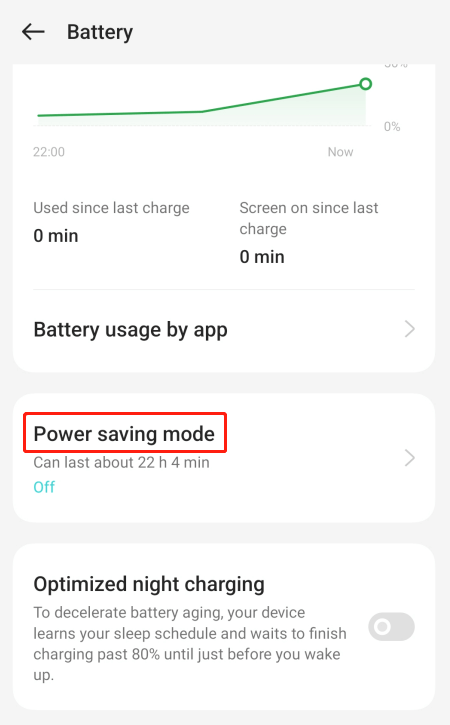
Turn off Power Saving
- Go to the Settings app on the Android
- Navigate to Battery
- Turn off Power saving mode
Update Android System
An outdated system may also be one reason you cannot open PDF files. System updates usually contain the latest bug fixes and optimizations, so you can check and update your Android device.
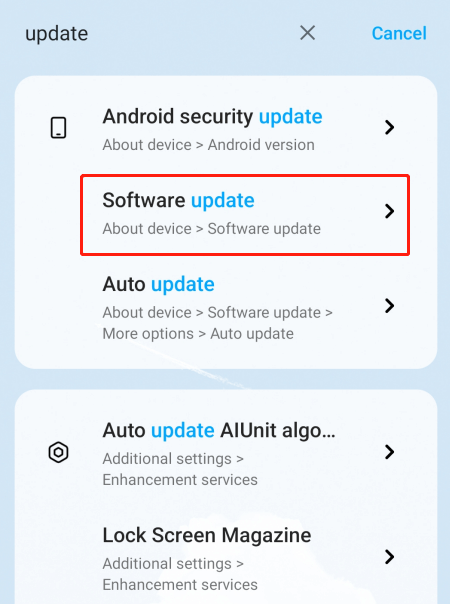
Update Android System
- Open Settings > Select About device
- Go to Software Update and check for new updates
- If an update is available, click Download and Install
